Run an iOS simulator
Code examples have tabs for the lim CLI and the SDKs, and the site remembers the tab you pick. The loop is always the same: read the screen, act on what is there, and collect the evidence you need.
To install your own build on the simulator, build it with remote Xcode or Bazel and attach the simulator to the sandbox.
Create a simulator
Create a simulator with one command:
lim ios createIn a build loop, attach the simulator to your most recent Xcode sandbox instead. The attach installs the sandbox's latest successful build, and every later successful build reinstalls automatically:
lim ios create --attach --reuse-if-exists --label session=demoThe output includes the instance ID and the signed stream URL. Open the signed stream URL in any browser to watch and control the simulator; the token is part of the URL, so nobody has to sign in. Agents should share it with the user at the start of a task.
--reuse-if-exists returns an existing instance with exactly the same labels instead of creating a new one, so retries land on the same warm simulator. Scope reuse to a task with a label such as --label issue=<ID>; see Labels and reuse for how the lookup works.
These lim ios create flags cover most workflows:
| Flag | What it does |
|---|---|
--attach | Attach the simulator to the most recent Xcode sandbox and install its latest successful build. Pass an Xcode sandbox ID as the argument to pick another one. |
--xcode | Also create an Xcode sandbox and attach the simulator to it. Use this when you want both instances before the first build. |
--reuse-if-exists | Return an existing instance with exactly the same labels. |
--label key=value | Attach a metadata label. Repeatable. Used by --reuse-if-exists, listing, and cleanup. |
--model iphone|iphone-duo|ipad|watch | Device model. Defaults to iphone. |
--jurisdiction us|eu|as | Keep the instance inside one jurisdiction. Hard constraint: creation fails when no region there has capacity. |
--region <name> | Deprecated. Only a preference that falls back to other regions when full. Use --jurisdiction. |
--inactivity-timeout <duration> | Delete after this much idle time, such as 1m, 10m, or 3h. Defaults to your organization setting. |
--hard-timeout <duration> | Delete after this much wall time. Defaults to no limit. |
--install <path> | Upload a local app and install it after creation. Repeatable. --asset-ttl sets the expiry of the uploaded file. |
--install-asset <name> | Install an app that is already in Asset Storage. Repeatable. |
--install-url <url> | Install an app from a signed download URL. Repeatable. |
--keychain <asset-name> | Restore an encrypted keychain asset after creation. See Save and restore the keychain. |
--force-bundle-id <bundle-id> | After this app first enters the foreground, bring it back whenever it is closed or backgrounded. It does not launch the app. |
--display-name <name> | Name shown in listings and the console. |
--rm | Delete the instance when the CLI process exits. Useful for one-shot runs. |
--no-open | By default the CLI opens the signed stream URL in your local browser once the instance is ready. Pass --no-open on headless hosts and in CI. |
--record, --events, --app-logs <bundle-id> | Start a persisted session recording, event log, or app log capture as soon as the instance is ready. --persist-ttl sets how long they are kept (default 72h). |
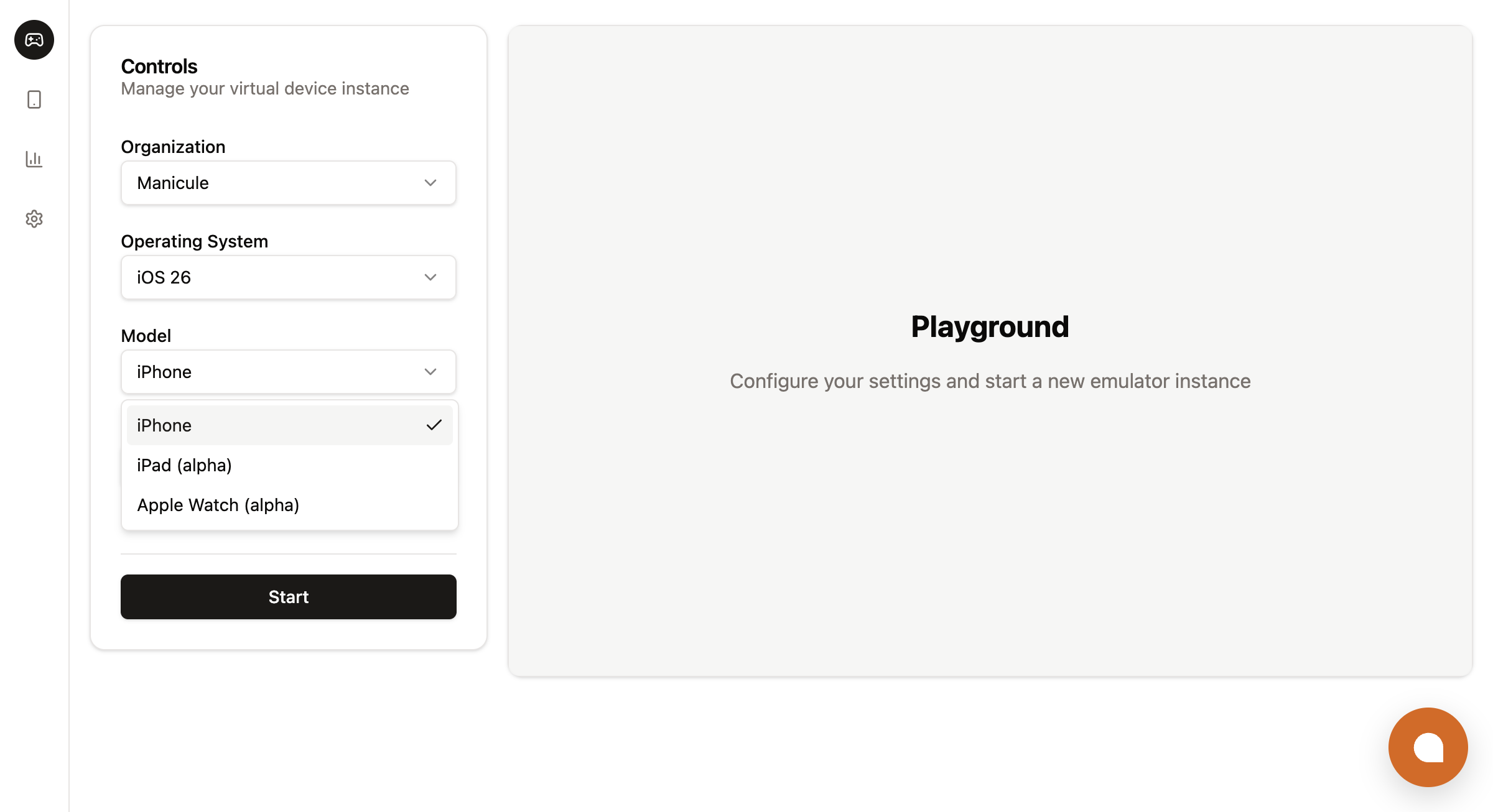
Run lim ios create --help for the complete list. The console Playground offers the same device models:
Configure the simulator from the SDK
Pass the same settings as spec fields on the create call. The TypeScript example sets the model, jurisdiction, timeouts, a scheduling clue, and an app to install at boot; the comments in the Python and Go examples name the fields those SDKs do not have yet:
import Limrun from '@limrun/api';

const lim = new Limrun({ apiKey: process.env['LIM_API_KEY'] });

const instance = await lim.iosInstances.create({
  wait: true,
  reuseIfExists: true,
  metadata: {
    labels: { app: 'my-app', session: 'demo' },
  },
  spec: {
    model: 'iphone',                    // 'iphone' | 'iphone-duo' | 'ipad' | 'watch'
    jurisdiction: 'us',                 // 'us' | 'eu' | 'as'; hard constraint on placement
    inactivityTimeout: '10m',           // '1m' | '10m' | '3h' | ...
    hardTimeout: '0',                   // '0' = no hard cap
    forceBundleId: 'com.example.myapp',
    clues: [{ kind: 'ClientIP', clientIp: '203.0.113.42' }],
    initialAssets: [
      { kind: 'App', source: 'AssetName', assetName: 'my-app-build.zip', launchMode: 'ForegroundIfRunning' },
    ],
  },
});
from limrun_api import Limrun
client = Limrun()
instance = client.ios_instances.create(
wait=True,
reuse_if_exists=True,
metadata={"labels": {"app": "my-app", "session": "demo"}},
spec={
# The Python SDK has no jurisdiction or force_bundle_id field, and its model
# type omits iphone-duo; use the CLI, the TypeScript SDK, or REST for those.
"model": "iphone", # "iphone" | "ipad" | "watch"
"inactivity_timeout": "10m",
"hard_timeout": "0",
"clues": [{"kind": "ClientIP", "client_ip": "203.0.113.42"}],
"initial_assets": [
{
"kind": "App",
"source": "AssetName",
"asset_name": "my-app-build.zip",
"launch_mode": "ForegroundIfRunning",
},
],
},
)import (
"context"
"os"
limrun "github.com/limrun-inc/go-sdk"
"github.com/limrun-inc/go-sdk/option"
"github.com/limrun-inc/go-sdk/packages/param"
)
ctx := context.Background()
lim := limrun.NewClient(option.WithAPIKey(os.Getenv("LIM_API_KEY")))
// Go SDK v0.9.0 has no Model, Jurisdiction, or ForceBundleID field on the create
// params. Instances default to iPhone; use the CLI or REST for the others.
instance, err := lim.IosInstances.New(ctx, limrun.IosInstanceNewParams{
Wait: param.NewOpt(true),
ReuseIfExists: param.NewOpt(true),
Metadata: limrun.IosInstanceNewParamsMetadata{
Labels: map[string]string{"app": "my-app", "session": "demo"},
},
Spec: limrun.IosInstanceNewParamsSpec{
InactivityTimeout: param.NewOpt("10m"),
HardTimeout: param.NewOpt("0"),
Clues: []limrun.IosInstanceNewParamsSpecClue{
{Kind: "ClientIP", ClientIP: param.NewOpt("203.0.113.42")},
},
InitialAssets: []limrun.IosInstanceNewParamsSpecInitialAsset{
{
Kind: "App",
Source: "AssetName",
AssetName: param.NewOpt("my-app-build.zip"),
LaunchMode: "ForegroundIfRunning",
},
},
},
})For iOS app assets, launchMode decides whether the app opens after installation. Omit it to install only; set ForegroundIfRunning or RelaunchIfRunning to open the app during provisioning. The complete spec and status field tables, including the legacy sandbox.xcode.enabled field, are in Instance spec and status.
Platform integrators should pass the end user's IP or location as a clue so the simulator runs near them; see client location clues.
Connect a device client
The SDKs open a WebSocket client with the instance's apiUrl and instance token. The CLI opens its own connection for every command, so it has no client step. status.token is returned only to a credential that can control the instance; a read-only API key or a viewer seat gets none, so check for it before connecting. The TypeScript SDK covers every method on this page. Go SDK v0.9.0 covers screenshots, the element tree, taps, element values, typing, key presses, app launch and install, URLs, orientation, lsof, and simctl; the SDK capability matrix has the full comparison. The Python SDK only manages instances, so drive devices from Python through the CLI.
# No client step: every command connects on its own.
lim ios screenshot ./out.jpg
import { Ios } from '@limrun/api';
const client = await Ios.createInstanceClient({
apiUrl: instance.status.apiUrl!,
token: instance.status.token!, // absent for read-only keys and viewer seats
logLevel: 'info', // 'none' | 'error' | 'warn' | 'info' | 'debug'
});
console.log('UDID:', client.deviceInfo.udid);
console.log('Screen:', client.deviceInfo.screenWidth, client.deviceInfo.screenHeight);import (
"context"
"os"
limrun "github.com/limrun-inc/go-sdk"
"github.com/limrun-inc/go-sdk/option"
"github.com/limrun-inc/go-sdk/packages/param"
iosws "github.com/limrun-inc/go-sdk/websocket/ios"
)
ctx := context.Background()
lim := limrun.NewClient(option.WithAPIKey(os.Getenv("LIM_API_KEY")))
inst, _ := lim.IosInstances.New(ctx, limrun.IosInstanceNewParams{
Wait: param.NewOpt(true),
ReuseIfExists: param.NewOpt(true),
Metadata: limrun.IosInstanceNewParamsMetadata{
Labels: map[string]string{"session": "demo"},
},
})
client, err := iosws.NewClient(inst.Status.APIURL, inst.Status.Token)
if err != nil { panic(err) }
defer client.Close()Both clients return once the WebSocket is connected. The TypeScript client also populates client.deviceInfo (UDID and screen size); the Go client in v0.9.0 has no device info accessor, so read the screen size from a screenshot. The Go snippets on the rest of this page reuse this ctx and client.
Read the screen
Read the screen before every action. The element tree lists each element's label, accessibility ID, type, and frame, and it is the source of truth for what the user can interact with. A screenshot is a visual check on top of it.
lim ios element-tree
lim ios screenshot ./out.jpg

# The tree can be large: filter the JSON output with jq or grep so it does not
# fill an agent's context window.
lim ios element-tree --json | jq '.. | objects | select((.AXLabel // "") | contains("Continue"))'
const tree = await client.elementTree();
// tree: ElementTreeNode[] (recursive accessibility hierarchy)
// fields per node: AXLabel, AXUniqueId, AXValue, role, type, title, traits, frame, children
const shot = await client.screenshot();
// { base64: string, width: number, height: number }; base64 is JPEG datatreeJSON, err := client.ElementTree(ctx, nil) // raw JSON; parse with encoding/json
shot, err := client.Screenshot(ctx) // shot.Base64, shot.Width, shot.HeightScreenshots are JPEG images. Their dimensions are in points, the same coordinate space as tap(x, y). To tap a coordinate from a scaled screenshot in TypeScript, pass the screenshot's size so the server converts it:
await client.tapWithScreenSize(x, y, screenshotWidth, screenshotHeight);Tap an element
Select elements by accessibility ID first, then by label, and use coordinates only as a last resort. Accessibility selectors survive layout changes; coordinates do not.
lim ios tap-element --ax-unique-id startButton
lim ios tap-element --ax-label "Save"
lim ios tap-element --ax-label-contains continue
lim ios tap-element --type Button --ax-label "Done"
lim ios tap 201 450
// By accessibility identifier (most stable)
await client.tapElement({ AXUniqueId: 'startButton' });
// By label
await client.tapElement({ AXLabel: 'Save' });
// By label contains (case-insensitive)
await client.tapElement({ AXLabelContains: 'continue' });
// By type + label
await client.tapElement({ type: 'Button', AXLabel: 'Done' });
// By coordinates (last resort)
await client.tap(201, 450);// ctx and client come from the connect step above.
// Selector field names differ slightly from TypeScript:
// AccessibilityID, Label, LabelContains, ElementType, Title, TitleContains, Value
_, err := client.TapElement(ctx, iosws.AccessibilitySelector{
AccessibilityID: "startButton",
})
_, err = client.TapElement(ctx, iosws.AccessibilitySelector{
Label: "Save",
})
_, err = client.TapElement(ctx, iosws.AccessibilitySelector{
ElementType: "Button",
Label: "Done",
})
err = client.Tap(ctx, 201, 450)tap-element accepts --ax-unique-id, --ax-label, --ax-label-contains, --type, --title, --title-contains, and --ax-value. Every field you pass must match (AND, not OR). The contains variants are case-insensitive.
The TypeScript selector fields are AXUniqueId, AXLabel, AXLabelContains, type, title, titleContains, and AXValue. Go names the same fields AccessibilityID, Label, LabelContains, ElementType, Title, TitleContains, and Value.
tapElement taps with a real synthesized touch, so the app reacts as it would to a finger. Elements the accessibility tree can see are scrolled into view before the tap. A selector that matches nothing fails in about a second, and iOS creates list rows lazily, so a row below the fold is often missing from the tree. For those rows, pass --scroll-search (SDK: { scrollSearch: true }): it pages the screen and retries until the row appears, up to three screens down and six screens up, within the call's time budget (timeoutMs in the SDK, 90 seconds by default). --activate ax (SDK: { activate: 'ax' }) performs an accessibility press instead: no scrolling and no touch events, but it works on elements without a usable frame.
Adjust values
Steppers, sliders, and text fields can be set directly instead of tapped. set-text writes a value through accessibility: the value lands verbatim, but the app's text delegates and keyboard behavior are skipped.
lim ios set-text "42" --ax-label Count
lim ios set-text "P@ssw0rd!" --focused
await client.incrementElement({ AXLabel: 'Volume' });
await client.decrementElement({ AXLabel: 'Volume' });
await client.setElementValue('42', { AXLabel: 'Count' }); // sets the exact value, no keyboard involved
await client.setElementValue('P@ssw0rd!'); // no selector: targets the focused fieldTypeScript only: incrementElement and decrementElement increment and decrement a stepper or slider.
Use set-text to seed field values. Use type, below, when the app must react as if a user typed.
Type and press keys
type sends real hardware key events into the focused field: text delegates fire, and the field's own keyboard behavior applies (a default text field capitalizes the first letter, for example). It fails when no field has focus, so tap the field first. If you focused a field another way, such as a coordinate tap, and the focus check misreads it, pass --no-require-focus to type anyway.
lim ios type "hello world" --enter          # press Enter after typing
lim ios type "hi" --no-require-focus
lim ios press-key @                         # shifted symbols work directly
lim ios press-key enter --modifier shift
lim ios toggle-keyboard
await client.typeText('hello world'); // types into focused field
await client.typeText('[email protected]', true); // pressEnter = true
await client.typeText('hi', false, { requireFocus: false }); // skip the focus check
await client.pressKey('enter');
await client.pressKey('a', ['shift']); // modifiers: shift, command, control, alt
await client.toggleKeyboard();err := client.TypeText(ctx, "hello world", false)
err = client.TypeText(ctx, "[email protected]", true) // pressEnter
err = client.PressKey(ctx, "enter")
err = client.PressKey(ctx, "a", "shift")
// toggleKeyboard is not in Go SDK v0.9.0.press-key accepts shifted symbols (@, #, ?) and adds the shift itself. --modifier is repeatable and accepts shift, command, control, and alt. toggle-keyboard is the equivalent of pressing ⌘K in the simulator.
Scroll and swipe
scroll is a finger-swipe gesture. --amount is the distance in pixels (default 300), --coordinate is the start point (default: the screen center; set it when the scrollable view is elsewhere, such as in a modal), and --momentum from 0.0 to 1.0 controls the fling. Directions follow the device rotation, so down scrolls the content down in landscape too.
lim ios scroll down --amount 300
lim ios scroll up --amount 300 --momentum 0.4 --coordinate 200,400
await client.scroll('down', 300);
await client.scroll('up', 300, { coordinate: [200, 400], momentum: 0.4 });For gestures with explicit start and end points, such as pull-to-refresh, carousel paging, or sliders, use swipe. Longer durations drag more precisely; shorter ones fling. The default is 300 ms.
lim ios swipe --from 200,300 --to 200,600                 # pull-to-refresh: drag down from inside the content
lim ios swipe --from 350,400 --to 50,400 --duration 800   # slow horizontal drag
CLI only: the SDKs have no swipe call. In TypeScript, compose a swipe from touch actions in a batch.
Rotate the device
Switch between portrait and landscape from the SDK, or with a setOrientation action in a batch:
await client.setOrientation('Portrait');
await client.setOrientation('Landscape');
err = client.SetOrientation(ctx, iosws.OrientationPortrait)
err = client.SetOrientation(ctx, iosws.OrientationLandscape)Open URLs and deep links
open-url opens web URLs in Safari and registered URL schemes in their apps:
lim ios open-url "https://apple.com"
lim ios open-url "myapp://orders/42"
await client.openUrl('https://apple.com'); // opens in Safari
await client.openUrl('myapp://orders/42'); // deep link into your apperr = client.OpenURL(ctx, "https://apple.com")
err = client.OpenURL(ctx, "myapp://orders/42")Run a batch of actions
When a sequence should run without a round trip between steps, send it as one batch. The server runs the whole batch next to the simulator. It stops at the first failing action, and the call fails with that action's error. When every action succeeds, it returns one result per action. Agents use this for anything longer than a single tap.
lim ios perform \
  --action 'type=tapElement,selector={"AXLabel":"Continue"}' \
  --action type=wait,durationMs=500 \
  --action "type=typeText,text=hello,pressEnter=true"
const result = await client.performActions(
[
{ type: 'tapElement', selector: { AXLabel: 'Continue' } },
{ type: 'wait', durationMs: 500 },
{ type: 'typeText', text: 'hello', pressEnter: true },
{ type: 'scroll', direction: 'down', pixels: 300 },
{ type: 'pressKey', key: 'enter' },
],
{ timeoutMs: 10_000 },
);
// result.results has one entry per action; a failing action rejects the call insteadLonger CLI sequences read better from a YAML or JSON file:
lim ios perform --file ./actions.yaml- type: tapElement
selector: { AXLabel: "Continue" }
- type: wait
durationMs: 500
- type: typeText
text: "hello"
pressEnter: trueThe CLI sizes the batch timeout from its waits and action count; override it with --timeout <ms>. In TypeScript, pass timeoutMs as shown above.
Action type values fall into two groups:
- High-level, one to one with the single-action commands:
tap,tapElement,incrementElement,decrementElement,setElementValue,typeText,pressKey,scroll,toggleKeyboard,openUrl,setOrientation,wait. - Raw HID, for custom gestures:
touchDown,touchMove,touchUp,keyDown,keyUp,buttonDown,buttonUp.
Hardware button values for buttonDown and buttonUp are home, lock, side, applePay, and softwareKeyboard. A native iPhone Duo also supports volumeUp and volumeDown.
Build custom gestures
Pair touchDown, touchMove, and touchUp with wait actions to build long presses, flings with custom inertia, or anything scroll does not cover. This drag moves one finger up the screen:
const cx = client.deviceInfo.screenWidth / 2;
const startY = 600;
const endY = 200;

await client.performActions([
  { type: 'touchDown', x: cx, y: startY },
  { type: 'wait', durationMs: 30 },
  { type: 'touchMove', x: cx, y: startY - 100 },
  { type: 'touchMove', x: cx, y: startY - 200 },
  { type: 'touchMove', x: cx, y: endY },
  { type: 'touchUp',   x: cx, y: endY },
]);
For a two-finger gesture, add x2 and y2 to every touchDown, touchMove, and touchUp. Each event moves both fingers together. Keep the same finger order throughout the gesture and lift both fingers with touchUp. Supplying only one of x2 or y2 rejects the batch before it runs. One or two fingers are supported; omit both fields for a single finger.
Both fingers share one coordinate space. Without screenWidth and screenHeight, coordinates use the device's display size in its current orientation. To use coordinates from a resized image, pass that image's width and height on every touch action; the server scales and rotates both fingers.
A two-finger tap from the CLI:
lim ios perform \
  --action type=touchDown,x=100,y=300,x2=200,y2=300 \
  --action type=wait,durationMs=100 \
  --action type=touchUp,x=100,y=300,x2=200,y2=300
This TypeScript pinch-out spreads two fingers apart over 320 milliseconds:
import type { Ios } from '@limrun/api';

type TwoFingerAction = Ios.PerformAction & { x2?: number; y2?: number };
const cx = client.deviceInfo.screenWidth / 2;
const cy = client.deviceInfo.screenHeight / 2;
const actions: TwoFingerAction[] = [
  { type: 'touchDown', x: cx - 20, y: cy, x2: cx + 20, y2: cy },
];
for (let step = 1; step <= 8; step++) {
  const spread = 20 + step * 10;
  actions.push(
    { type: 'wait', durationMs: 40 },
    { type: 'touchMove', x: cx - spread, y: cy, x2: cx + spread, y2: cy },
  );
}
actions.push({ type: 'touchUp', x: cx - 100, y: cy, x2: cx + 100, y2: cy });
await client.performActions(actions);
The example assumes portrait orientation. The local TwoFingerAction type adds x2 and y2 in case your installed SDK's type definitions lack them; the runtime accepts them either way.
x and y are the first finger; x2 and y2 are the second. lim ios perform --file actions.json accepts the same actions array as JSON, so you can save a gesture and replay it from the CLI. To zoom out, start with the fingers apart and move them toward each other before lifting both.
Manage apps
List, launch, terminate, and install apps by bundle ID. list-apps includes system apps.
lim ios list-apps
lim ios launch-app com.example.MyApp --mode RelaunchIfRunning
lim ios terminate-app com.example.MyApp
lim ios install-app ./MyApp.app.zip
lim ios install-app https://... --md5 abc... --launch-mode ForegroundIfRunning
const apps = await client.listApps();
// [{ bundleId, name, installType }, ...]
await client.launchApp('com.example.MyApp');
await client.launchApp('com.example.MyApp', 'RelaunchIfRunning');
await client.launchApp('com.example.MyApp', {
mode: 'RelaunchIfRunning',
onExit: async (logs) => {
console.log('App exited. Last lines from this launch:');
for (const line of logs) console.log(line);
},
});
await client.terminateApp('com.example.MyApp');
// Install from a URL (md5 enables server-side caching)
await client.installApp('https://...build.zip', {
md5: '...',
timeoutMs: 120_000,
launchMode: 'ForegroundIfRunning',
});apps, err := client.ListApps(ctx)
// []InstalledApp{ BundleID, Name, InstallType }
err = client.LaunchApp(ctx, "com.example.MyApp")
result, err := client.InstallApp(ctx, "https://...build.zip", &iosws.AppInstallationOptions{
MD5: "...",
LaunchMode: "ForegroundIfRunning",
})
// terminateApp is not in Go SDK v0.9.0; use `lim ios terminate-app` instead.launch-app streams the app's logs and exits when the app exits. CLI only: pass --detach to return right after the launch, for example in scripts. install-app accepts a local archive, which the CLI uploads to Asset Storage first, or a remote URL, which the instance downloads itself. --md5 (SDK: md5) enables server-side install caching for remote URLs. If you don't know the bundle ID, check the Xcode project or run list-apps after a successful build.
TypeScript only: use onExit when your runner needs to react to a crash or termination. The callback receives the stdout and stderr lines recorded for that launch.
Reset app data between runs
Between test cases, wipe the app's data container and relaunch it instead of reinstalling. The TypeScript SDK does this with softReset:
await client.softReset('com.example.MyApp');                       // strategy: 'data' (default)
await client.softReset('com.example.MyApp', { strategy: 'full' }); // also clears caches, keychain, and privacy grants
// returns: { strategy, bundleId, itemsCleared?, durationMs }
Read app logs
Tail recent lines (default 100) or stream live output for one app:
lim ios app-log com.example.MyApp --tail 200
lim ios app-log com.example.MyApp --follow
// One-shot tail
const tail = await client.appLogTail('com.example.MyApp', 200);
// Stream live
const stream = client.streamAppLog('com.example.MyApp');
stream.on('line', (line) => console.log(line));
stream.on('error', console.error);
stream.on('close', () => console.log('stream closed'));
stream.stop(); // unsubscribe when doneIn TypeScript, the stream emits one line event per log line, batched about every 500 ms on the server, plus error and close.
For low-level debugging beyond one app's stdout and stderr, stream the simulator's syslog until you interrupt it:
lim ios syslog --id <instance-id>Record a video
For anything that moves (animations, gestures, games), record a video instead of taking screenshots, and attach it to the pull request. Recording runs on the server. --quality accepts integers from 5 (default) to 10; higher values increase fidelity and file size.
lim ios record start --quality 5
# ... drive the UI ...
lim ios record stop -o /tmp/demo.mp4
# or upload straight to your own bucket:
lim ios record stop --presigned-url "<url>"
await client.startRecording({ quality: 5 });
// ... drive the UI ...
const downloadUrl = await client.stopRecording({ localPath: '/tmp/demo.mp4' });
// or:
await client.stopRecording({ presignedUrl: '<your-s3-upload-url>' });TypeScript only: stopRecording can save to a local file and hand the bytes to a presigned URL in the same call.
Keep captures after the session
Captures can also be persisted to Limrun storage, so they outlive the CLI process and the instance. Start them when you create the simulator, or persist a recording when you start it:
lim ios create --record --events --app-logs com.example.myapp --persist-ttl 24h
lim ios record start --persist --persist-ttl 72h
--record keeps recording until you stop it or the instance terminates. --events captures a log of taps, scrolls, and commands, and --app-logs <bundle-id> launches the app and captures its output. Persisted captures are kept for 72h unless --persist-ttl says otherwise. List them afterwards:
lim ios recordings --id <instance-id>
lim ios events --id <instance-id>
lim ios app-logs --id <instance-id>
Each events and app-logs entry is a timestamped JSONL file.
Simulate the camera
Play a video file as the simulator's camera for QR-code scanning, document capture, video-call screens, or any AVCaptureSession flow that needs predictable frames. The file uploads to the instance and replaces the live browser camera until you clear it; apps see it through their regular capture pipeline.
lim ios camera play ./fixtures/qr-scan.mp4
lim ios camera play ./fixtures/intro.mp4 --no-loop
lim ios camera clear
await client.setCameraVideo('./fixtures/qr-scan.mp4'); // loops by default
await client.setCameraVideo('./fixtures/intro.mp4', { loop: false }); // play once
await client.clearCameraVideo(); // back to the live cameraWithout looping, the feed freezes on the last frame after one pass, so the app keeps receiving frames instead of seeing the camera stall. Anything AVFoundation can decode works, such as H.264 or HEVC in .mp4 or .mov. Portrait recordings play upright.
Simulate the microphone
Play a local audio file (WAV, MP3, M4A, or AAC) as microphone input. Playback loops until you stop it; --once plays a single pass:
lim ios microphone play ./fixtures/sample.wav --id <instance-id>
lim ios microphone play ./fixtures/sample.mp3 --once --id <instance-id>
lim ios microphone stop --id <instance-id>
Set the clipboard
Put text on the simulator clipboard and read it back. Apps paste it like text copied inside the simulator, so the edit menu's Paste shows no permission prompt. For example, to paste a one-time code into a login form:
lim ios clipboard set "123456"
echo "123456" | lim ios clipboard set
lim ios clipboard get
// Run simctl pbcopy and pbpaste; pbcopy reads its text from the stdin option.
await client.simctl(['pbcopy', 'booted'], { stdin: '123456' }).wait();
const { stdout: clipboard } = await client.simctl(['pbpaste', 'booted']).wait();Read and write user defaults
Read, write, or delete the simulator's user defaults with its defaults tool. Pass the arguments after --. Apps read defaults at launch, so relaunch the app under test after a change. For example, to switch the device language and region without UI automation:
lim ios defaults -- write -g AppleLanguages -array fr-FR
lim ios defaults -- write -g AppleLocale -string fr_FR
lim ios defaults -- read -g AppleLanguages
await client.simctl(['spawn', 'booted', 'defaults', 'write', '-g', 'AppleLanguages', '-array', 'fr-FR']).wait();lim ios defaults accepts only read, write, and delete.
Post notifications
Post a Darwin notification, or set and read a notification's state, inside the simulator with its notifyutil tool:
lim ios notify post <name>
lim ios notify set <name> <state>
lim ios notify get <name>
For example, the simulator drives Face ID through these notifications. Enroll once, then answer each Face ID prompt with a match or a non-match. Touch ID devices use fingerTouch in place of pearl:
lim ios notify set com.apple.BiometricKit.enrollmentChanged 1
lim ios notify post com.apple.BiometricKit.enrollmentChanged
lim ios notify post com.apple.BiometricKit_Sim.pearl.match     # the next scan succeeds
lim ios notify post com.apple.BiometricKit_Sim.pearl.nomatch   # the next scan fails
// notify post, set, and get are notifyutil -p, -s, and -g.
await client.simctl(['spawn', 'booted', 'notifyutil', '-p', 'com.apple.BiometricKit_Sim.pearl.match']).wait();Transfer files
List a directory to find the exact relative path, then pull, push, or delete files with the same container flags:
lim ios ls Documents --bundle-id com.example.app --container-type data
lim ios pull-file Documents/recording.mov ./recording.mov \
  --bundle-id com.example.app --container-type data
lim ios push-file ./fixture.json Documents/fixture.json \
  --bundle-id com.example.app --container-type data
lim ios delete-file Documents/fixture.json \
  --bundle-id com.example.app --container-type data
import { writeFile } from 'node:fs/promises';
// Pass the same container options to each call.
const container = {
bundleId: 'com.example.app',
containerType: 'data',
};
const entries = await client.listFiles('Documents', container);
// [{ name: 'recording.mov', path: 'Documents/recording.mov',
// isDirectory: false, size: 123456 }]
const recording = await client.pullFile(entries[0].path, container);
await writeFile('./recording.mov', recording);Without --bundle-id, file commands target the simulator staging folder. With --bundle-id, the default container type is app; use data for writable app data such as Documents, Library, and tmp, or pass an App Group identifier. Every path that ls returns is relative to the selected root and works with the other commands unchanged.
Save and restore the keychain
If your app keeps login or session state in the iOS keychain, save the keychain after signing in once and restore it into later simulators. Save it from the signed-in simulator:
# The default asset name is "keychain/login.tar.gz"
lim ios keychain save
The command stores an encrypted Keychain asset, generates an encryption key, and prints the matching restore command. Store the key somewhere safe: restoring needs it to decrypt the archive.
lim ios keychain restore --encryption-key <key>You can also restore the keychain while creating a simulator:
lim ios create --reuse-if-exists \
  --label app=my-app --label scenario=logged-in \
  --keychain keychain/login.tar.gz \
  --encryption-key <key>
To generate the key yourself and keep it off the command line, pass it on stdin:
lim ios keychain generate-key > keychain.key
lim ios keychain save keychain/login.tar.gz --encryption-key-stdin < keychain.key
lim ios keychain restore keychain/login.tar.gz --encryption-key-stdin < keychain.key
Fold an iPhone Duo
The iPhone Duo model must be available to your organization. Create one, then read or change the hinge:
lim ios create --model iphone-duo
lim ios fold --json --id <instance-id>
lim ios fold 90 --orientation landscape-left --id <instance-id>
lim ios fold 0 --id <instance-id>
lim ios fold 180 --id <instance-id>
lim ios screenshot ./inner.jpg --display inner --id <instance-id>
lim ios tap 300 200 --display inner --id <instance-id>
const fold = await client.getFoldState(); // null on an ordinary simulator
await client.setHingeAngle(110);
await client.setDuoOrientation('landscape-left');
const inner = await client.screenshotDisplay('inner');
await client.tapDisplay('inner', inner.width / 2, inner.height / 2);The hinge accepts fractional angles from 0° (closed) to 180° (flat). Omit the angle to read the fold state. Use fold 0 to close and fold 180 to unfold; there is no separate unfold command. --orientation accepts portrait, pud (portrait upside down), landscape-left, or landscape-right, and changes independently of the hinge, so lim ios fold --orientation portrait --id <instance-id> rotates without moving the hinge.
This drives the native simulator hinge, so apps receive Apple's hinge and layout updates. --display outer targets the cover display and --display inner the unfolded one, for screenshot and tap.
setDuoOrientation accepts portrait, landscape-left, landscape-right, and pud. Display screenshots are upright, report dimensions in points, and contain JPEG data, including when saved with lim ios screenshot --display; tapDisplay uses those coordinates. These calls do not activate a display, so fold or unfold first; a display that is not ready reports an error.
Use the display-specific methods for Duo automation. The element tree, the default screenshot, and recordings do not follow the inner display automatically.
In the browser stream, the Duo starts in a 2D frame and offers a lazy-loaded 3D frame. Both modes provide hinge and rotation controls, touch input on the cover and inner display, and single-finger touch and drag, but not multi-touch. Click or hold the frame's Sleep/Wake and volume buttons to control iOS. In 3D, the position starts unlocked; Lock position stops camera rotation while the screen and buttons stay active. Rotating the view moves the camera, while Rotate device changes the native orientation. Laptop view sets the hinge and orientation; it does not enable Apple's separate Table Mode. To embed the Duo frame in your own app, see iPhone Duo frame.
Use macOS dev tools
When the commands above don't cover what you need, the instance exposes a small set of macOS developer tools:
lim ios simctl -- listapps booted
lim ios xcrun  -- --sdk iphonesimulator --show-sdk-version
lim ios xcodebuild -- -version
lim ios lsof
// Streaming simctl
const exec = client.simctl(['listapps', 'booted']);
exec.on('line-stdout', (line) => console.log(line));
exec.on('line-stderr', (line) => console.error(line));
const { code } = await exec.wait();
// One-shot xcrun (limited to --sdk / --show-* flags)
const { stdout } = await client.xcrun(['--sdk', 'iphonesimulator', '--show-sdk-version']);
// xcodebuild version only
await client.xcodebuild(['-version']);
// Upload a local file to the simulator staging folder (returns the path on the host)
const remotePath = await client.pushFile('/local/path/to/config.json', 'config.json');
// Inspect open UNIX sockets
const sockets = await client.lsof();// simctl mirrors os/exec.Cmd; pipe to your own writers or buffer the output.
cmd := client.Simctl(ctx, "listapps", "booted")
cmd.Stdout = os.Stdout
cmd.Stderr = os.Stderr
if err := cmd.Run(); err != nil { panic(err) }
// Inspect open UNIX sockets
sockets, err := client.Lsof(ctx)
// xcrun, xcodebuild, and file transfer are not in Go SDK v0.9.0.simctl streams stdout and stderr. xcrun is limited to the --sdk and --show-* flags, and xcodebuild to -version.
Reuse and clean up
Each simulator is single-tenant: only one client should drive it at a time. Scope instances per user, pull request, or session with labels, and let reuseIfExists return the same warm instance on the next call. For platform integrators, this matters when a UI action triggers create: without reuse, repeated clicks can create hundreds of instances, each billed; with it, they settle on one.
This create call returns the same instance for the same session across multiple agent runs:
lim ios create --reuse-if-exists --label session=<session-id> --label user=<user-id>const instance = await lim.iosInstances.create({
wait: true,
reuseIfExists: true,
metadata: { labels: { session: sessionId, user: userId } },
});instance = client.ios_instances.create(
wait=True,
reuse_if_exists=True,
metadata={"labels": {"session": session_id, "user": user_id}},
)instance, err := lim.IosInstances.New(ctx, limrun.IosInstanceNewParams{
Wait: param.NewOpt(true),
ReuseIfExists: param.NewOpt(true),
Metadata: limrun.IosInstanceNewParamsMetadata{
Labels: map[string]string{"session": sessionID, "user": userID},
},
})
if err != nil {
panic(err)
}Delete an instance when you are done, or list instances by label and delete every match:
lim ios list --label-selector "agent=ci,issue=LIM-34"
lim ios delete <instance-id>
await lim.iosInstances.delete(instance.metadata.id);
const stale = await lim.iosInstances.list({ labelSelector: `user=${userId}`, state: 'ready' });
for await (const inst of stale) {
await lim.iosInstances.delete(inst.metadata.id);
}client.ios_instances.delete(instance.metadata.id)
params = {"label_selector": f"user={user_id}", "state": "ready"}
while page := client.ios_instances.list(**params).items:
for inst in page:
client.ios_instances.delete(inst.metadata.id)
# Page by hand: the iterator stops after the first page.
params["starting_after"] = page[-1].metadata.idif err := lim.IosInstances.Delete(ctx, instance.Metadata.ID); err != nil {
panic(err)
}
// Page by hand: ListAutoPaging panics on instance lists.
params := limrun.IosInstanceListParams{
LabelSelector: param.NewOpt("user=" + userID),
State: param.NewOpt("ready"),
}
for {
page, err := lim.IosInstances.List(ctx, params)
if err != nil {
panic(err)
}
if len(page.Items) == 0 {
break
}
for _, inst := range page.Items {
if err := lim.IosInstances.Delete(ctx, inst.Metadata.ID); err != nil {
panic(err)
}
}
params.StartingAfter = param.NewOpt(page.Items[len(page.Items)-1].Metadata.ID)
}CLI only: without an ID, lim ios delete removes the last iOS instance the CLI created in this workspace, so list by label first if you created several. lim ios list shows ready instances by default; pass --all or --state for other states.
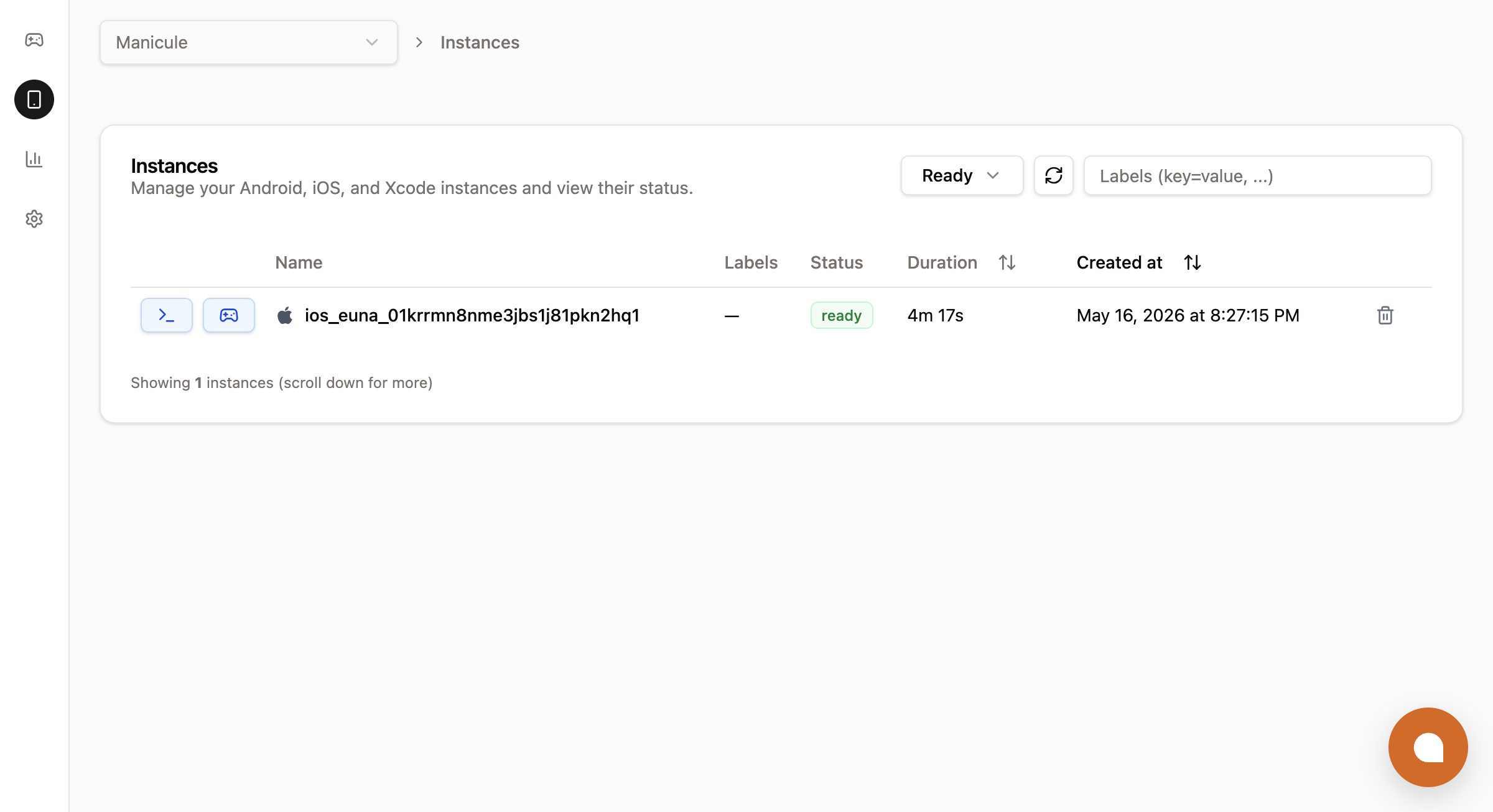
The console's Instances tab shows the same data. Filter by state or label selector, sort by duration or creation time, and reopen any ready instance with one click:
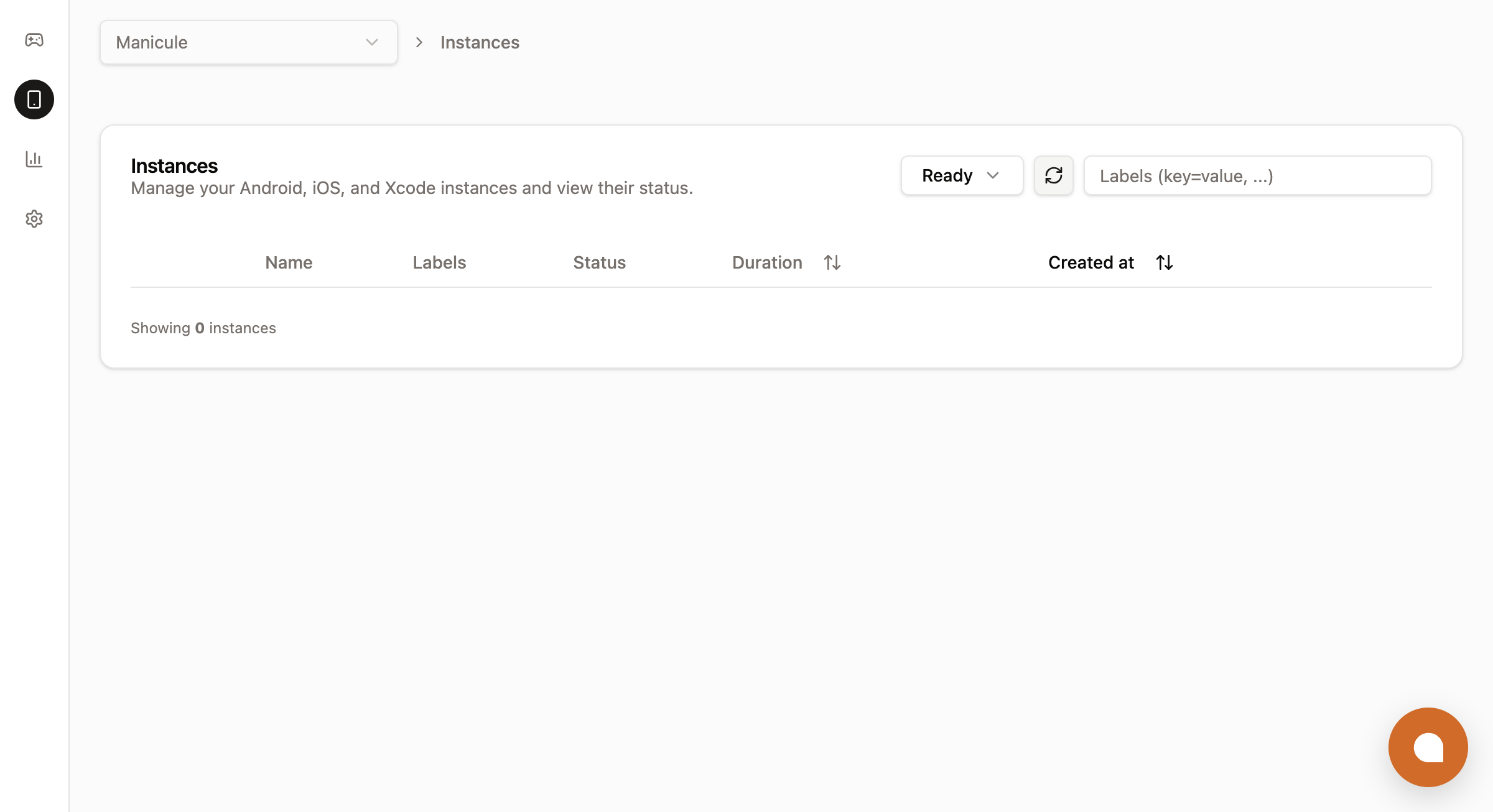
After a delete, or after the inactivity timeout fires, the row leaves the Ready filter. The All filter still shows it as terminated until it ages out:
Troubleshooting
| Symptom or message | Cause | Fix |
|---|---|---|
tap-element fails after about a second with a selector that matched nothing | The element is not in the accessibility tree yet. iOS creates list rows lazily, so rows below the fold are often missing. | Pass --scroll-search, or put scroll actions before the tapElement in a batch. Read lim ios element-tree to confirm the selector values. |
type fails because no field is focused | type requires a focused text field. | Tap the field first. If you focused it with a coordinate tap and the focus check misreads it, pass --no-require-focus. |
| Typed text is capitalized or autocorrected | type sends real key events, so the field's keyboard behavior applies. | Use set-text to write the exact value through accessibility. |
| A two-finger batch is rejected before it runs | A touch action has only one of x2 or y2. | Supply both on every touchDown, touchMove, and touchUp, or neither. |
| An iPhone Duo display call reports an error | The display is not active in the current fold state. | Fold or unfold first with lim ios fold 0 or lim ios fold 180. |
lim ios delete removed the wrong instance | Without an ID it deletes the last iOS instance the CLI created in this workspace. | Run lim ios list and pass the instance ID. |
Next steps
Build with remote Xcode
Produce the build that installs onto the simulator.
Connect to local services
Let the app on the simulator reach a server on your machine or VPN.
Run XCTest suites
Run unit and UI test targets on the simulator with lim xcode test.
Test in-app purchases
Serve StoreKit products from a local config and complete purchases without an Apple ID.
Embed a device
Render the simulator in your web app with <RemoteControl />.
Was this guide helpful?