# Build an iOS app with Bazel from Claude Code on the web
URL: /docs/tutorials/ios-bazel-claude-code-web
LLM index: /llms.txt
Description: Copy a Bazel iOS template, have Claude change the app, and review the change on a cloud simulator and in a pull request preview.
# Build an iOS app with Bazel from Claude Code on the web
Ask Claude Code on the web to change a Bazel iOS app, watch the change land on a cloud iOS simulator, and review it in a pull request with a preview link. Every Apple build action runs on Limrun's remote Macs through Bazel remote build execution, so neither you nor the session VM needs a Mac or Xcode.
## Before you start
- A Claude Code on the web environment set up as described in [Claude Code on the web](/docs/agents/cloud-agents/claude-code-web). This tutorial calls it `limrun`.
- The Limrun API key you added to that environment. The template's preview workflow uses it too.
- A GitHub account. The [GitHub CLI](https://cli.github.com) is optional; it makes the secret step one command.
Open [limrun-inc/ios-bazel-template](https://github.com/limrun-inc/ios-bazel-template), click **Use this template**, then **Create a new repository**. The template is a small SwiftUI chat app built with `rules_apple` and `rules_swift`. Its assistant replies are canned, so it needs no network or API key of its own.
 Your copy includes an iOS Preview workflow that builds every pull request and comments with a preview link. GitHub copies the workflow but not the secrets, so add the key yourself. The command prompts for the value:
```bash
gh secret set LIM_API_KEY --repo /
```
Without the GitHub CLI, add it under **Settings**, **Secrets and variables**, **Actions** in your copy.
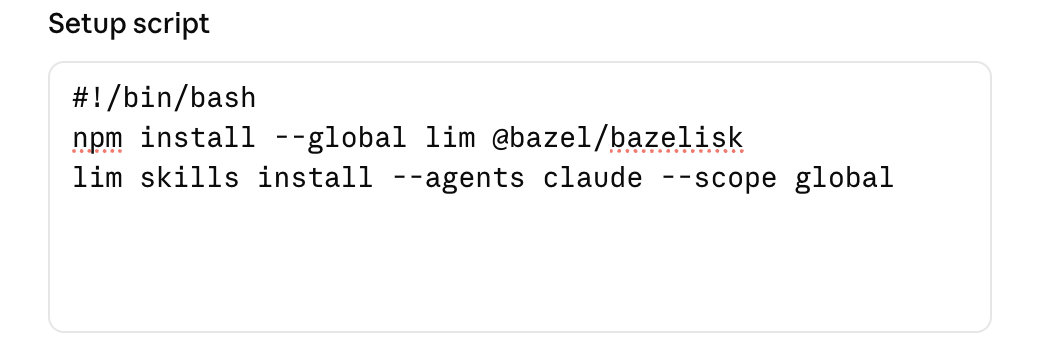
The session VM doesn't ship bazelisk. Edit the `limrun` environment and add `@bazel/bazelisk` to the install line of its setup script:
```bash
#!/bin/bash
npm install --global lim @bazel/bazelisk
lim skills install --agents claude --scope global
```
Your copy includes an iOS Preview workflow that builds every pull request and comments with a preview link. GitHub copies the workflow but not the secrets, so add the key yourself. The command prompts for the value:
```bash
gh secret set LIM_API_KEY --repo /
```
Without the GitHub CLI, add it under **Settings**, **Secrets and variables**, **Actions** in your copy.
The session VM doesn't ship bazelisk. Edit the `limrun` environment and add `@bazel/bazelisk` to the install line of its setup script:
```bash
#!/bin/bash
npm install --global lim @bazel/bazelisk
lim skills install --agents claude --scope global
```
 Start a new session on your copy with the `limrun` environment, and send:
```text
Build this app with Limrun and show it to me on an iOS simulator.
```
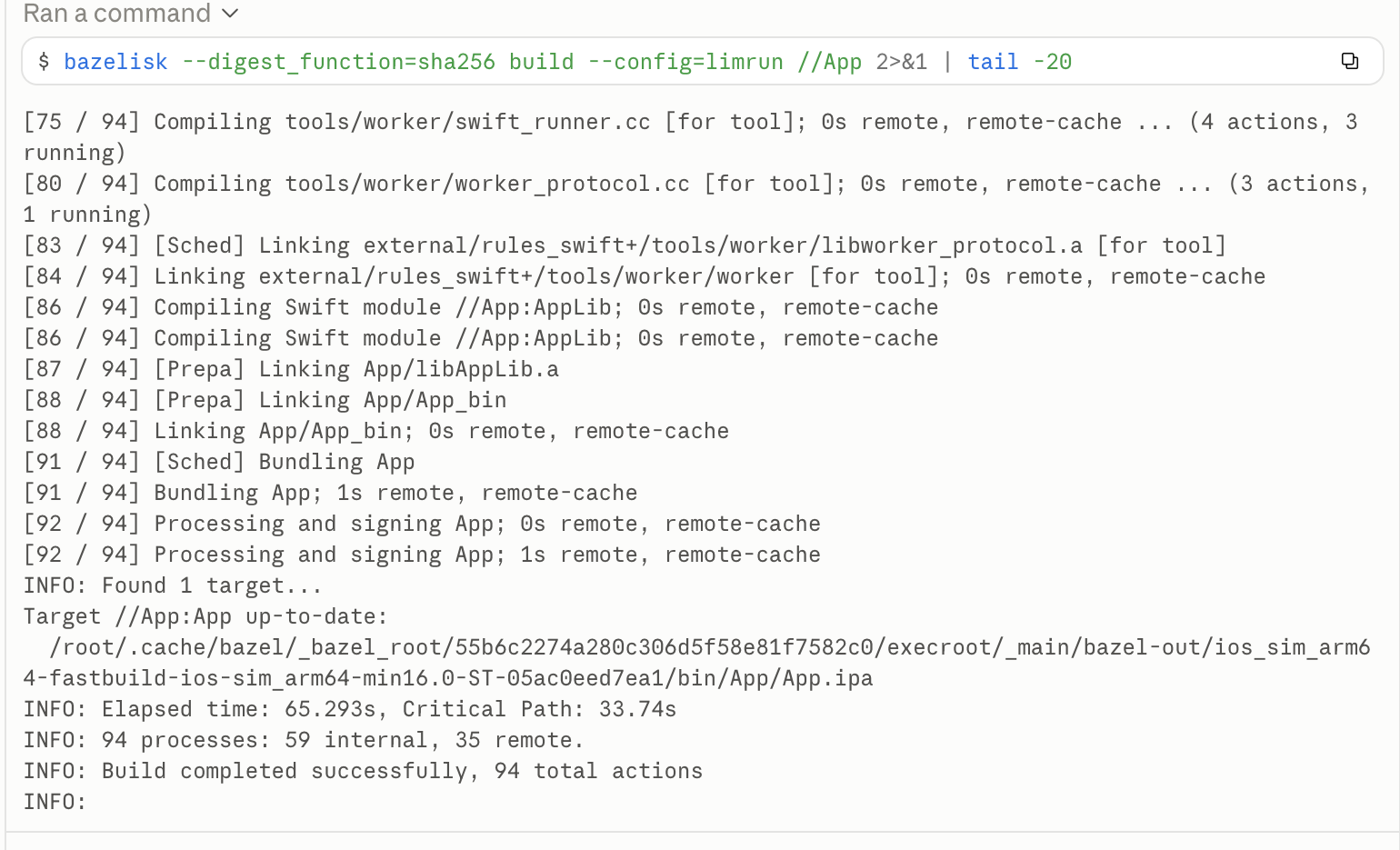
Following the `limrun-xcode-bazel` skill, Claude runs `lim xcode rbe` to start a remote build stack, attaches a simulator, and builds with the command the CLI prints. The first build took about a minute in our run, with the Apple actions executing on the remote Macs:
Start a new session on your copy with the `limrun` environment, and send:
```text
Build this app with Limrun and show it to me on an iOS simulator.
```
Following the `limrun-xcode-bazel` skill, Claude runs `lim xcode rbe` to start a remote build stack, attaches a simulator, and builds with the command the CLI prints. The first build took about a minute in our run, with the Apple actions executing on the remote Macs:
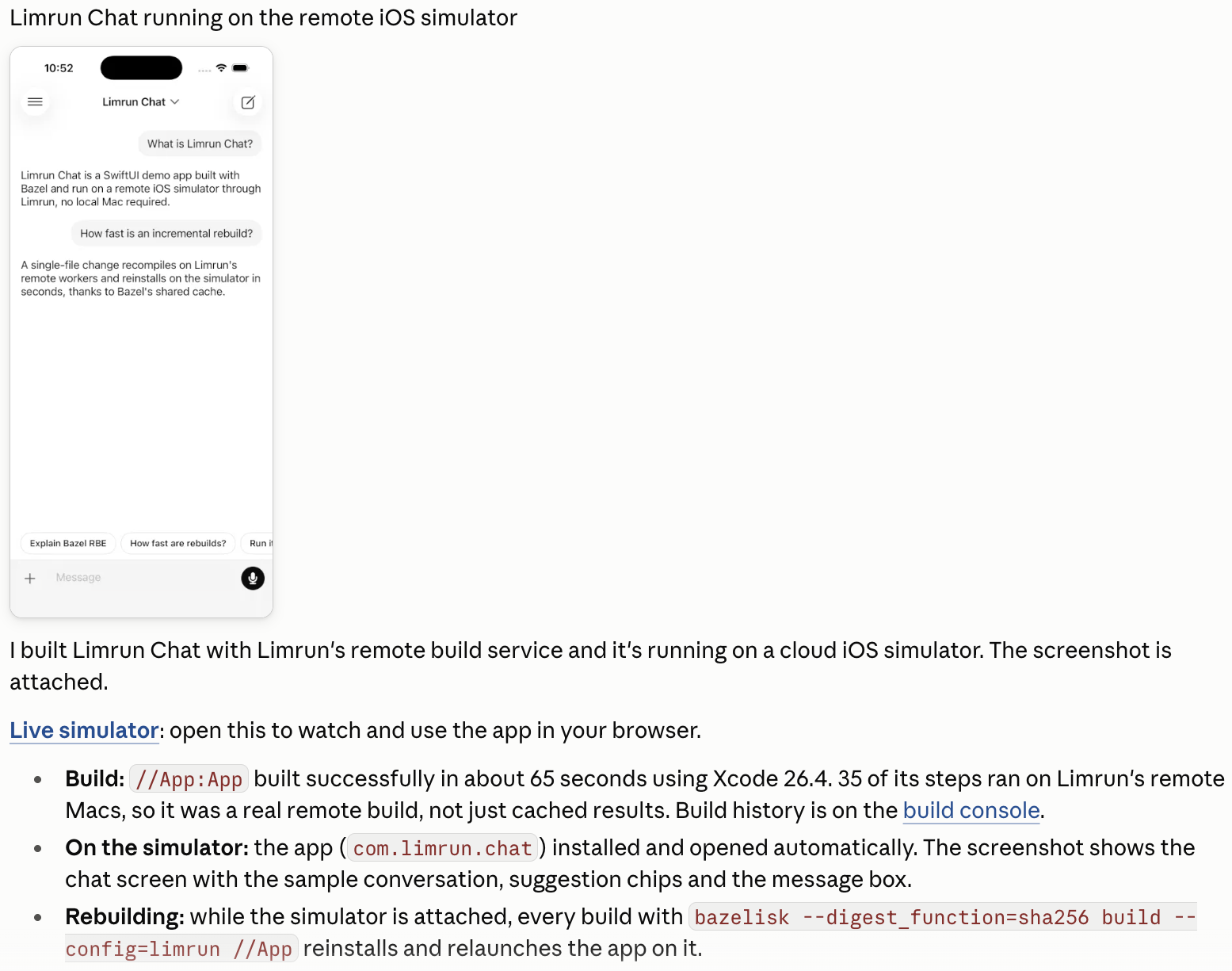
 The successful build installs the app on the attached simulator. Claude's reply includes a screenshot and a link to the live simulator:
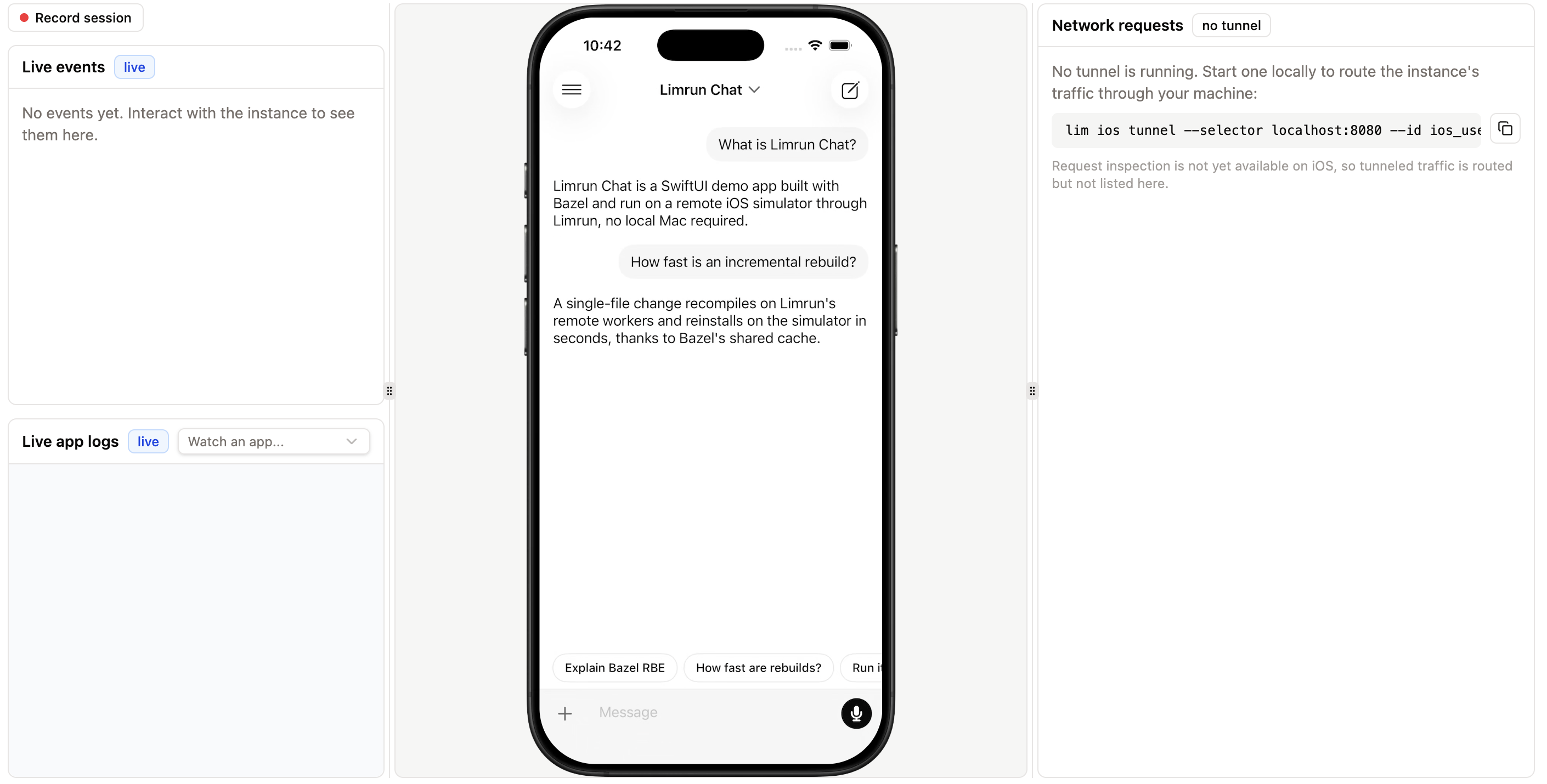
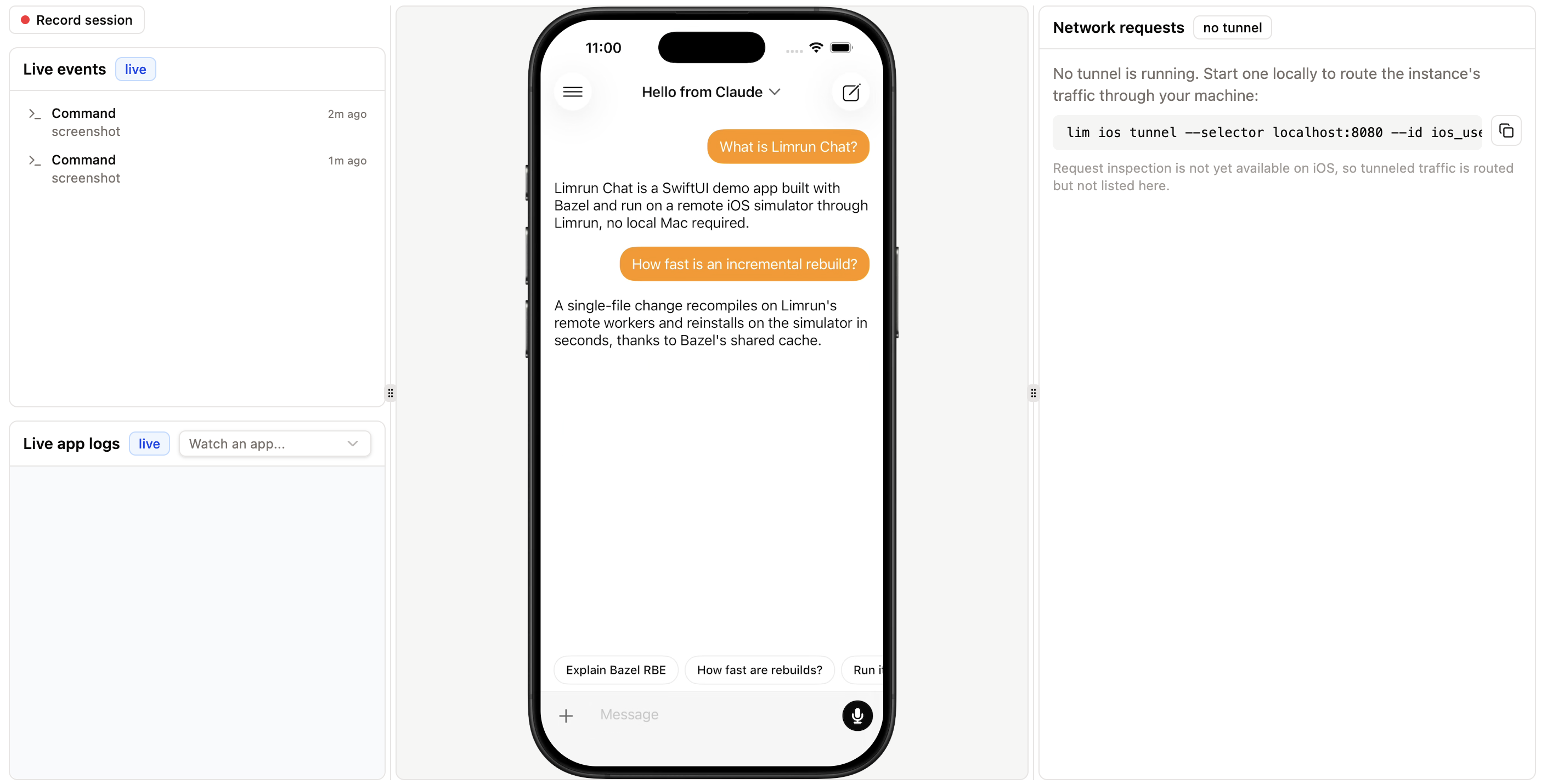
 Open the link to use the app in your browser:
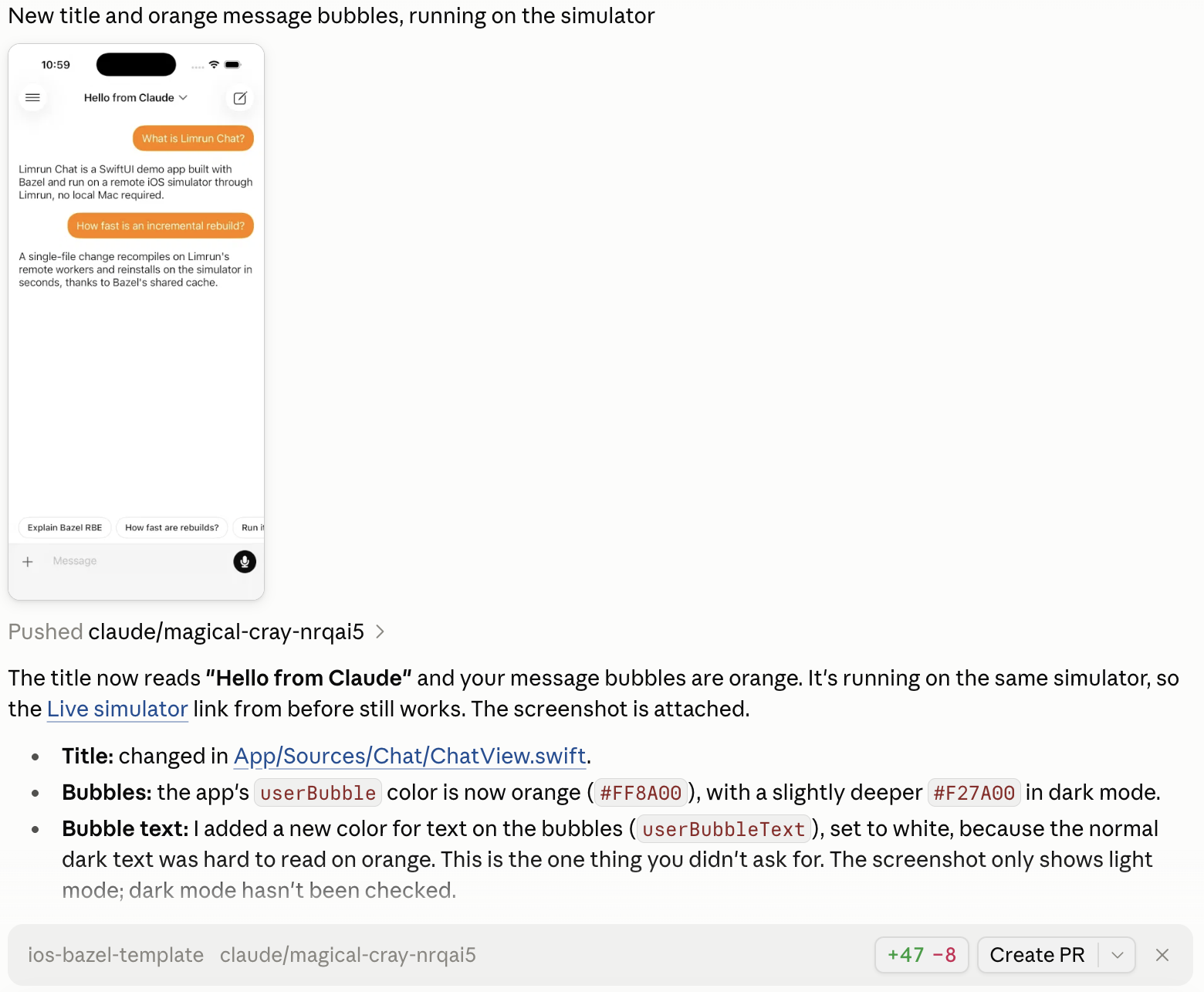
 Keep the simulator open and ask for a visible change:
```text
Change the title to "Hello from Claude" and make my message bubbles orange, then show me.
```
Claude edits the Swift source and the asset catalog, then rebuilds. Bazel reuses the cached actions from the first build, so the rebuild took under 10 seconds in our run. The app reinstalls and relaunches on the simulator you have open. Claude also commits the change and pushes it to a new branch:
Keep the simulator open and ask for a visible change:
```text
Change the title to "Hello from Claude" and make my message bubbles orange, then show me.
```
Claude edits the Swift source and the asset catalog, then rebuilds. Bazel reuses the cached actions from the first build, so the rebuild took under 10 seconds in our run. The app reinstalls and relaunches on the simulator you have open. Claude also commits the change and pushes it to a new branch:
 Click **Create PR** in the session bar. The pull request opens under your GitHub account, which starts the iOS Preview workflow.
 When the workflow finishes, about two minutes in our run, it comments on the pull request with a preview link:
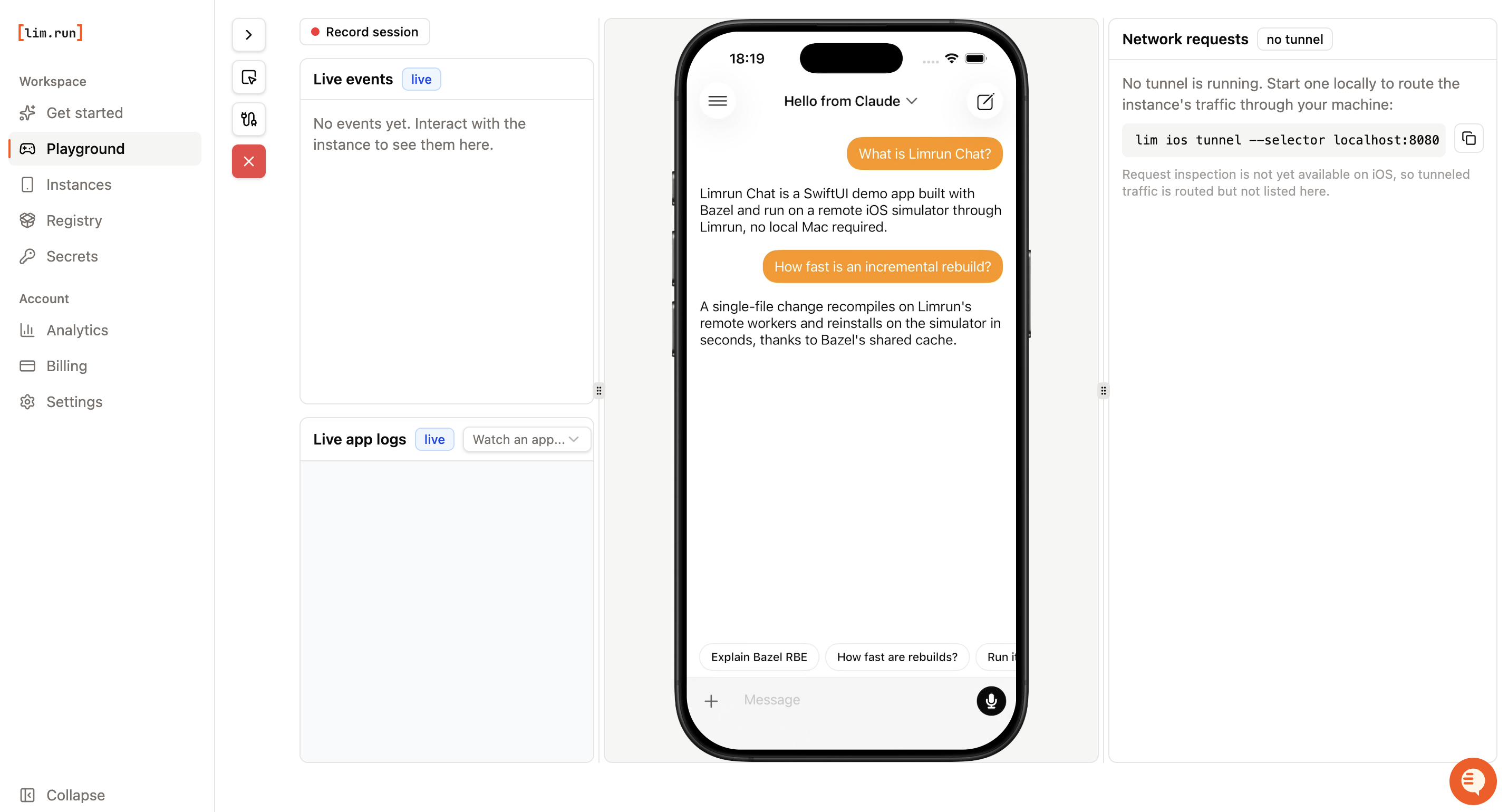
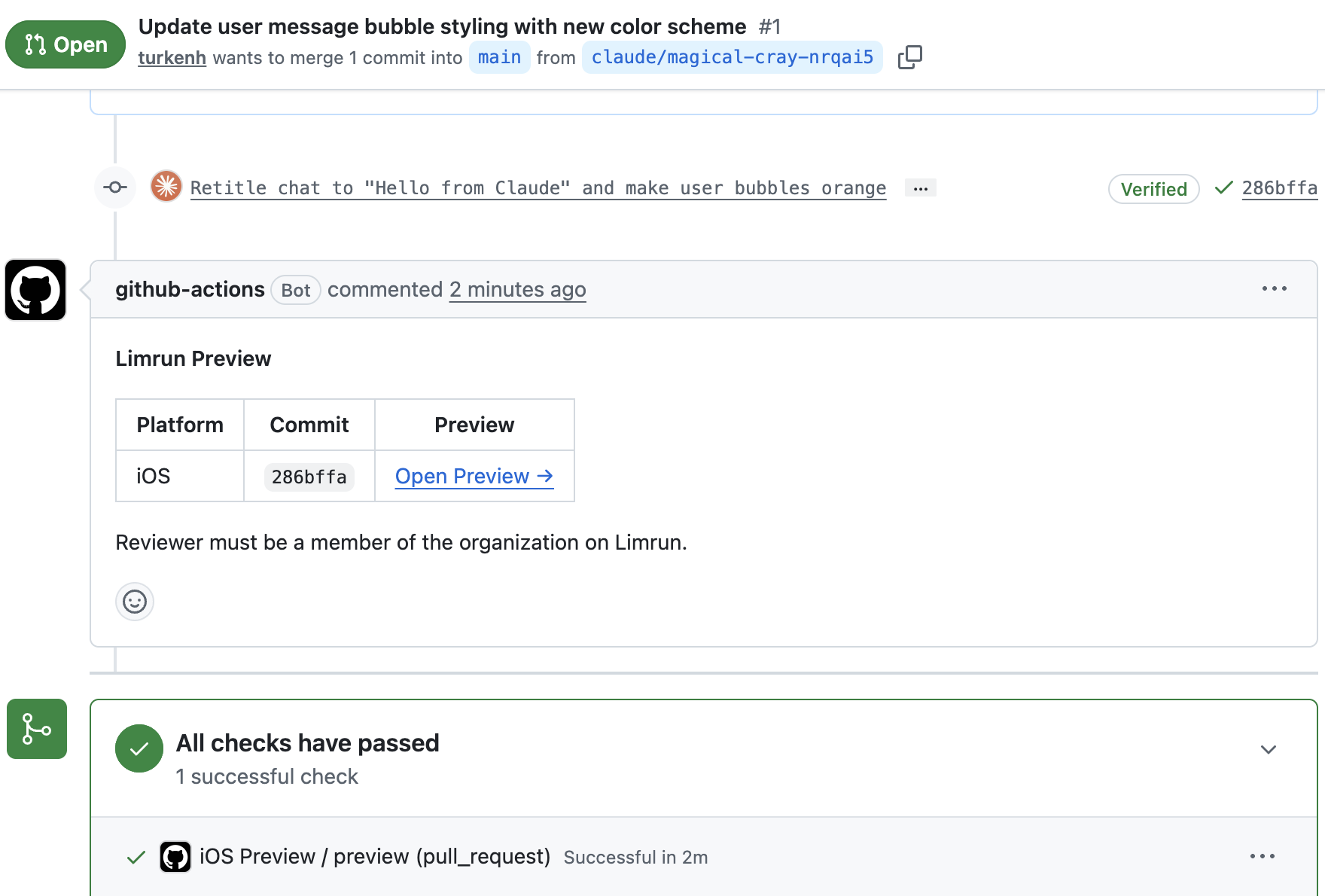 **Open Preview** runs the build from the pull request on a simulator in the Limrun console. Reviewers need to be members of your Limrun organization to open it.
 ## Clean up
The Xcode sandbox and the simulator delete themselves after your organization's inactivity timeout, so closing the session is enough. To stop them right away, ask Claude to run `lim xcode rbe --stop` before you close the session.
## Use your own Bazel project
The same flow works on your own Bazel workspace once the `limrun` environment has bazelisk. Start from [Build with Bazel](/docs/ios/build-with-bazel) for what `lim xcode rbe` configures, and copy `.github/workflows/ios-preview.yml` from the template to get preview links on your own pull requests; [Automatic PR Previews](/docs/ios/pr-previews) covers its options.
## Next steps
Remote build execution, uploads, and CI for Bazel workspaces.
Preview links on every pull request, for Bazel and xcodebuild projects.
## Clean up
The Xcode sandbox and the simulator delete themselves after your organization's inactivity timeout, so closing the session is enough. To stop them right away, ask Claude to run `lim xcode rbe --stop` before you close the session.
## Use your own Bazel project
The same flow works on your own Bazel workspace once the `limrun` environment has bazelisk. Start from [Build with Bazel](/docs/ios/build-with-bazel) for what `lim xcode rbe` configures, and copy `.github/workflows/ios-preview.yml` from the template to get preview links on your own pull requests; [Automatic PR Previews](/docs/ios/pr-previews) covers its options.
## Next steps
Remote build execution, uploads, and CI for Bazel workspaces.
Preview links on every pull request, for Bazel and xcodebuild projects.