# Quickstart
URL: /docs/quickstart
LLM index: /llms.txt
Description: Get a remote iOS simulator and Xcode build running from your terminal in 3 minutes.
# Quickstart
Build an iOS app on a remote Xcode sandbox and watch the result stream into your browser, all from your terminal.
If you're handing this off to a coding agent, read [CLI for coding agents](/docs/agents/cli) instead. That page is the skill an agent should follow end to end.
## Try it in your browser first
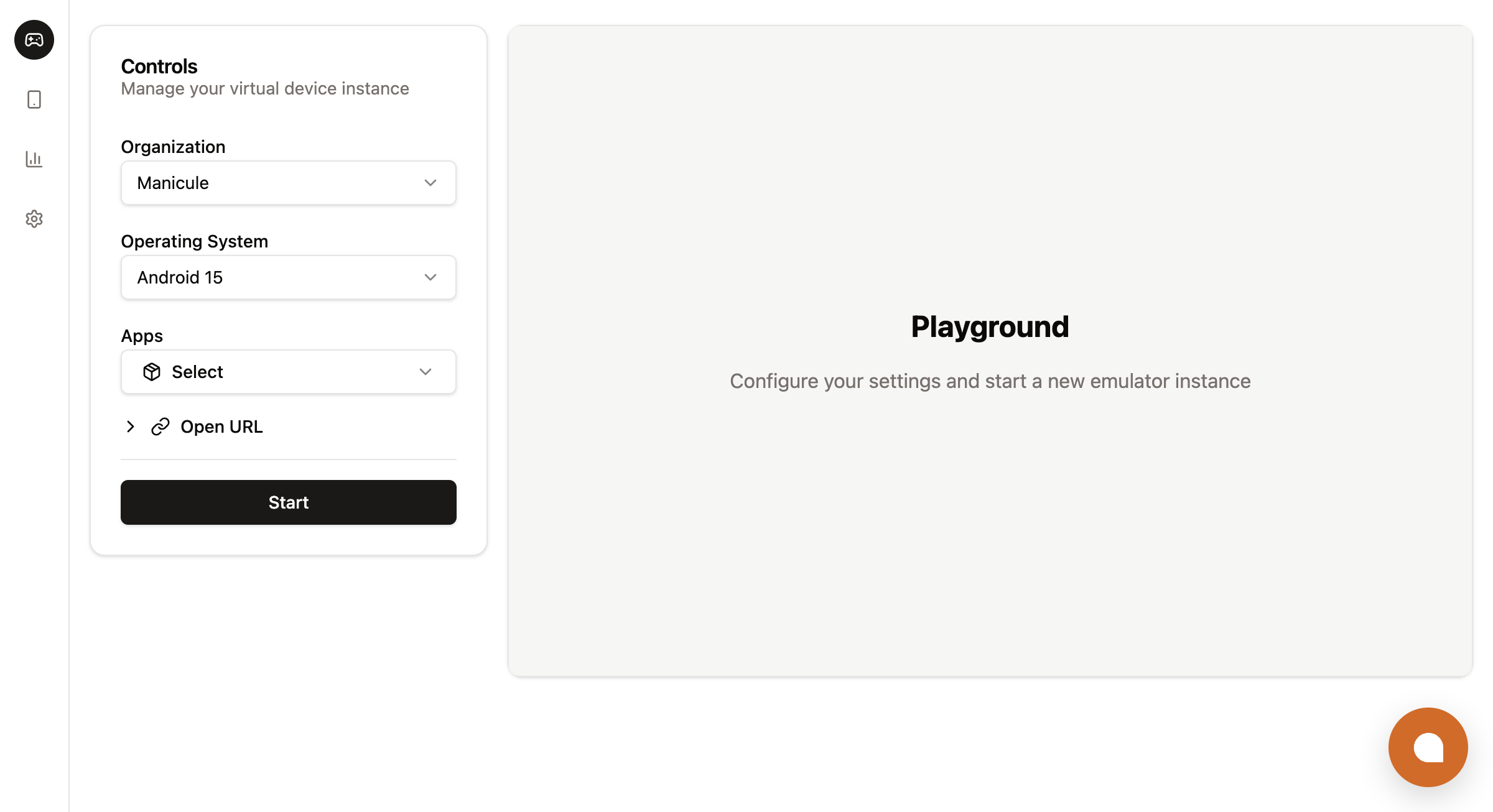
If you'd rather poke at an instance before installing anything, [console.limrun.com](https://console.limrun.com) has a **Playground** that creates and streams an instance from a dropdown. Pick an OS, pick an app to preinstall, hit **Start**.
 The rest of this page covers the CLI flow.
## Set up the build
Requires Node.js 20 LTS or newer.
```bash
# Pick your package manager
npm install --global @limrun/cli
pnpm add --global @limrun/cli
bun add --global @limrun/cli
```
Open the console in your browser, grab the API key from the page, and write it to `~/.lim/config.yaml`:
```bash
lim login
```
On a headless host (CI, a devcontainer), set `LIM_API_KEY` in the environment instead.
Use the sample app for the quickest path. Already have an iOS project locally? Skip the clone and `cd` into your project directory.
```bash
git clone https://github.com/limrun-inc/sample-native-app.git
cd sample-native-app
```
A single `lim ios create --xcode` provisions a simulator and an attached Xcode sandbox in one call. `--reuse-if-exists` makes re-runs return the same instance instead of creating a new one.
```bash
lim ios create --xcode --reuse-if-exists --label project=quickstart
```
Open the **Signed Stream URL** from the output in any browser to watch the simulator live. The URL has its own token embedded, so no sign-in is needed.
From inside the project directory:
```bash
lim xcode build .
```
For multi-scheme projects, add `--scheme ` and either `--workspace ` or `--project `.
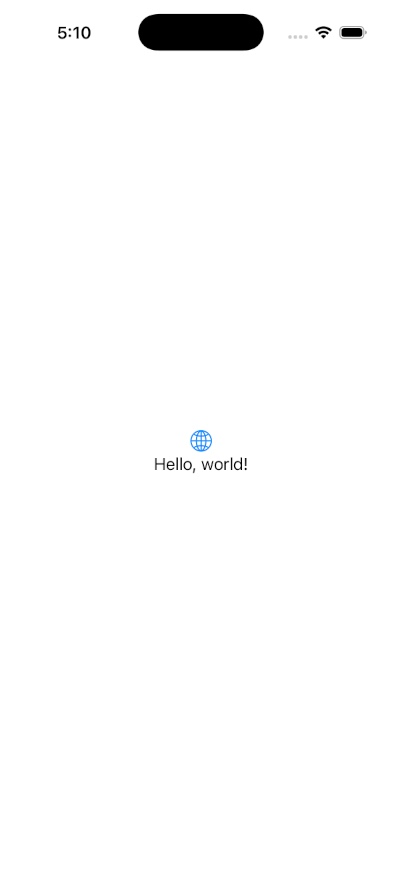
Build logs stream back as they happen. On success, the build artifact auto-installs and auto-launches on the attached simulator. The streaming tab updates to your app's first screen a few seconds after the build completes.
The rest of this page covers the CLI flow.
## Set up the build
Requires Node.js 20 LTS or newer.
```bash
# Pick your package manager
npm install --global @limrun/cli
pnpm add --global @limrun/cli
bun add --global @limrun/cli
```
Open the console in your browser, grab the API key from the page, and write it to `~/.lim/config.yaml`:
```bash
lim login
```
On a headless host (CI, a devcontainer), set `LIM_API_KEY` in the environment instead.
Use the sample app for the quickest path. Already have an iOS project locally? Skip the clone and `cd` into your project directory.
```bash
git clone https://github.com/limrun-inc/sample-native-app.git
cd sample-native-app
```
A single `lim ios create --xcode` provisions a simulator and an attached Xcode sandbox in one call. `--reuse-if-exists` makes re-runs return the same instance instead of creating a new one.
```bash
lim ios create --xcode --reuse-if-exists --label project=quickstart
```
Open the **Signed Stream URL** from the output in any browser to watch the simulator live. The URL has its own token embedded, so no sign-in is needed.
From inside the project directory:
```bash
lim xcode build .
```
For multi-scheme projects, add `--scheme ` and either `--workspace ` or `--project `.
Build logs stream back as they happen. On success, the build artifact auto-installs and auto-launches on the attached simulator. The streaming tab updates to your app's first screen a few seconds after the build completes.
 ## Drive the app
Once the build lands, you can read state and drive the UI directly from your shell. Most commands default to the last-created instance, so you rarely need to pass `--id`.
```bash
lim ios screenshot ./screen.png
lim ios element-tree
lim ios tap-element --ax-label "Continue"
lim ios type "Hello"
```
The element tree is the source of truth for what the UI shows: labels, accessibility IDs, types, frames. Reach for it before every action; it's faster and more reliable than visual inspection.
## Tear down
When you're done, delete the instance. Without an ID, `lim ios delete` removes the last iOS instance the CLI created for you (the pointer is in `~/.lim/last-instances.json`).
```bash
lim ios delete
```
## Where to go next
Hand the build, drive, and ship loop off to a coding agent via the bundled skill.
Every `lim xcode build` flag, real-device IPAs, source-sync internals, MCP-wrapped build tools.
Stream a live iOS or Android simulator into your web app with `` from `@limrun/ui`.
ADB tunnel, scrcpy streaming, Appium, and the rest of the Android toolchain over a remote emulator.
## Drive the app
Once the build lands, you can read state and drive the UI directly from your shell. Most commands default to the last-created instance, so you rarely need to pass `--id`.
```bash
lim ios screenshot ./screen.png
lim ios element-tree
lim ios tap-element --ax-label "Continue"
lim ios type "Hello"
```
The element tree is the source of truth for what the UI shows: labels, accessibility IDs, types, frames. Reach for it before every action; it's faster and more reliable than visual inspection.
## Tear down
When you're done, delete the instance. Without an ID, `lim ios delete` removes the last iOS instance the CLI created for you (the pointer is in `~/.lim/last-instances.json`).
```bash
lim ios delete
```
## Where to go next
Hand the build, drive, and ship loop off to a coding agent via the bundled skill.
Every `lim xcode build` flag, real-device IPAs, source-sync internals, MCP-wrapped build tools.
Stream a live iOS or Android simulator into your web app with `` from `@limrun/ui`.
ADB tunnel, scrcpy streaming, Appium, and the rest of the Android toolchain over a remote emulator.