# CLI for coding agents
URL: /docs/agents/cli
LLM index: /llms.txt
Description: Install the `lim` CLI in your coding agent's environment. The agent then builds your iOS app on a remote Mac, drives the simulator, and posts preview links on PRs.
# CLI for coding agents
Coding agents drive Limrun through the `lim` CLI. Once it's installed and authenticated, the agent can create a simulator, build your app, tap through it, record video, and share a preview link without leaving its shell.
```text
You're helping me build and test an iOS app on Limrun. For every task that runs the app:
1. Check `lim --version`. If it's missing, ask me to install `@limrun/cli` first.
2. Check that `LIM_API_KEY` is set. If not, ask me.
3. Create or reuse an instance:
lim ios create --xcode --reuse-if-exists --label issue=
Share the Signed Stream URL from the output so I can watch.
4. Build with `lim xcode build .`. Never use local `xcodebuild`. For multi-scheme projects, add `--scheme` and `--workspace`. If the build fails, read the errors and fix the code; don't bounce them back to me.
5. Before each tap, read the screen with `lim ios element-tree`. Prefer accessibility selectors:
lim ios tap-element --ax-unique-id startButton
lim ios tap-element --ax-label "Save"
6. For anything involving motion, record video:
lim ios record start
lim ios record stop -o /tmp/demo.mp4
Attach the video to the PR.
7. When the work is ready, upload the build and share a preview link:
ASSET_NAME=.zip
lim xcode build . --upload "${ASSET_NAME}"
Post https://console.limrun.com/preview?asset=${ASSET_NAME}&platform=ios in your final message and the PR description.
8. Clean up with `lim ios delete`. If you created more than one instance, list first:
lim ios list --label-selector "issue="
For MCP-based device control instead of the CLI, see /agents/mcp.md.
```
Setup is short: install the CLI, set your API key, hand the agent the prompt above (or install the bundled skill). The rest of this page is the same guide the skill gives your agent, plus the command reference behind it.
## One-time setup
### 1. Install the CLI
```bash
# Pick your package manager
npm install --global @limrun/cli
pnpm add --global @limrun/cli
bun add --global @limrun/cli
```
Needs Node.js 20 LTS or newer.
### 2. Set your API key
Set `LIM_API_KEY` in the environment your agent runs in. The CLI also picks up `.env` files in the working directory.
```bash
export LIM_API_KEY=lim_...
```
### 3. Give your agent the instructions
Either copy the prompt at the top of this page into your agent, or install the bundled skill so the agent picks it up automatically:
```bash
lim skills install
```
The CLI detects which coding agents you have on the machine (Claude Code, Cursor, Codex), asks which ones to set up, then asks whether to install into the current project or globally. The default skill is `limrun-ios`, one short Markdown file you can read at [`typescript-sdk/packages/cli/skills/limrun-ios/SKILL.md`](https://github.com/limrun-inc/typescript-sdk/blob/main/packages/cli/skills/limrun-ios/SKILL.md).
## What the agent does
The loop the skill walks the agent through:
1. **Create or reuse an instance.** One `lim ios create --xcode` boots a simulator and an attached Mac sandbox. Labels let re-runs land on the same instance.
2. **Build the app.** `lim xcode build .` syncs the source to the sandbox, runs `xcodebuild` remotely, streams the logs back, and installs the build on the simulator on success.
3. **Read the screen, then act.** Before every tap, the agent reads `lim ios element-tree` and picks elements by accessibility ID. No flaky pixel coordinates.
4. **Record video** for changes that involve motion.
5. **Upload the build and share a preview link** so reviewers open the app in any browser.
6. **Delete the instance** when the work is done.
The rest of this page is the command reference behind each step.
## Create an instance
```bash
lim ios create --xcode --reuse-if-exists
```
`--xcode` attaches a Mac sandbox to the simulator (required for `lim xcode build`). `--reuse-if-exists` returns an existing instance in the same region instead of provisioning a new one, so retries land back on the same warm instance. Scope reuse to a specific task by adding a label (`--label issue=`); without one, every reuse call in your org matches the same unlabeled instance.
The output includes the instance ID, the **Signed Stream URL**, and the Xcode sandbox URL. Open the Signed Stream URL in any browser to watch the simulator live; the token is in the URL, so no login is required. Share the Signed Stream URL with the user at the start of a task.
### Useful flags
| Flag | What it does |
|---|---|
| `--xcode` | Attach a Mac sandbox. Required for `lim xcode build`. |
| `--reuse-if-exists` | Return an existing instance with the same labels instead of creating a new one. |
| `--label key=value` | Repeatable. Used by `--reuse-if-exists` and for cleanup. |
| `--region us-west` | Pin to a region. |
| `--inactivity-timeout 10m` | Auto-delete after this much idle time. `1m`, `10m`, `3h`. Org default applies if you skip it. |
| `--hard-timeout 3h` | Force-delete after this much wall time. `0` (default) means no cap. |
| `--install ./build.app` | Local app to upload and install at boot. Repeatable. |
| `--install-asset ` | Pre-installed asset from Asset Storage. Repeatable. |
| `--model iphone\|ipad\|watch` | Device model. Defaults to `iphone`. |
| `--rm` | Delete the instance when the CLI process exits. Handy for one-shot runs. |
## Build the app
```bash
lim xcode build .
```
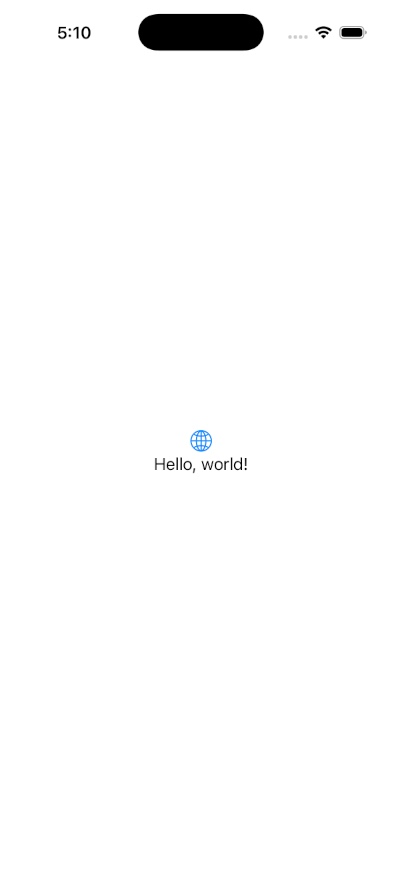
This is the only build command. Don't use local `xcodebuild`. The CLI syncs your working directory to the Mac sandbox (only the changed bytes), runs `xcodebuild` server-side, streams the logs back, and installs the build on the attached simulator on success.
For workspaces or multi-scheme projects:
```bash
lim xcode build . --workspace MyApp.xcworkspace --scheme MyApp
```
 ### Build flags
| Flag | What it does |
|---|---|
| `--scheme MyApp` | Xcode scheme name. |
| `--workspace path.xcworkspace` | Use a workspace file. |
| `--project path.xcodeproj` | Use a project file (alternative to `--workspace`). |
| `--sdk iphonesimulator\|iphoneos\|watchsimulator\|watchos` | Target SDK. |
| `--upload ` | Save the build artifact to Asset Storage under this name. Used for preview links. |
| `--signed-upload-url ` | Upload to your own pre-signed URL (S3, GCS, etc). |
| `--certificate-p12 path.p12` `--certificate-password ...` `--provisioning-profile path.mobileprovision` | Sign for a real-device build. |
| `--additional-file local=remote` | Sync an extra file (like `~/.netrc`) into the sandbox on every build. Repeatable. |
| `--ignore 'regex'` | Skip paths during sync. Repeatable. |
| `--basis-cache-dir path` `--max-patch-bytes N` | Tune the local sync cache. |
The sync skips `.git`, `.DS_Store`, the basis cache, and anything in your `.gitignore`. `.xcconfig` files are always synced. If your `.gitignore` doesn't cover `DerivedData/` or `xcuserdata/`, add them with `--ignore`.
## Read the screen, then act
Always read state before the next action. The element tree shows every label, accessibility ID, type, and frame on the screen. It's the source of truth, not a screenshot.
```bash
lim ios element-tree
```
The tree can be big. Pipe through `grep` or `jq` so it doesn't fill your agent's context window:
```bash
lim ios element-tree --json | jq '.[] | select(.AXLabel | contains("Continue"))'
```
For a visual check, take a screenshot:
```bash
lim ios screenshot ./out.png
```
### Tap, type, scroll
Find elements by accessibility ID first, then label, then coordinates as a last resort. The first two survive UI changes; coordinates don't.
```bash
lim ios tap-element --ax-unique-id startButton
lim ios tap-element --ax-label "Save"
lim ios tap-element --type Button --ax-label "Done"
lim ios tap 201 450
```
`tap-element` accepts `--ax-unique-id`, `--ax-label`, `--ax-label-contains`, `--type`, `--title`, `--title-contains`, and `--ax-value`. Combine them to narrow the match.
Text, keys, scrolling, deep links:
```bash
lim ios type "hello world" --enter
lim ios press-key enter --modifier shift
lim ios scroll down --amount 300
lim ios open-url "https://apple.com"
```
### Run several actions in one shot
When a sequence shouldn't have round-trip latency between steps, use `lim ios perform`. The server runs the whole batch and stops on the first failure.
```bash
lim ios perform \
--action type=tap,x=100,y=200 \
--action "type=typeText,text=Hello World"
lim ios perform \
--action type=wait,durationMs=1000 \
--action type=pressKey,key=enter
```
Or from a file:
```bash
lim ios perform --file ./actions.yaml
```
```yaml title="actions.yaml"
- type: tapElement
selector: { AXLabel: "Continue" }
- type: wait
durationMs: 500
- type: typeText
text: "hello"
pressEnter: true
```
Supported `type`s: `tap`, `tapElement`, `incrementElement`, `decrementElement`, `setElementValue`, `typeText`, `pressKey`, `scroll`, `toggleKeyboard`, `openUrl`, `setOrientation`, `wait`, `touchDown`, `touchMove`, `touchUp`, `keyDown`, `keyUp`, `buttonDown`, `buttonUp`.
Hardware button names for `buttonDown` and `buttonUp`: `home`, `lock`, `side`, `applePay`, `softwareKeyboard`.
## Apps and logs
```bash
lim ios list-apps # bundle IDs of every installed app
lim ios launch-app com.example.MyApp
lim ios launch-app com.example.MyApp --mode RelaunchIfRunning
lim ios terminate-app com.example.MyApp
lim ios install-app ./MyApp.app.zip # local zipped .app folder, or
lim ios install-app https://... # remote URL (downloaded server-side)
```
Stream live logs or tail the last N lines:
```bash
lim ios app-log com.example.MyApp --follow
lim ios app-log com.example.MyApp --tail 200
```
## Record a video
For anything involving motion (animations, gestures, gameplay), record a video instead of taking screenshots. Always attach it to the PR.
```bash
lim ios record start
# ... drive the UI ...
lim ios record stop -o /tmp/demo.mp4
```
`--quality 5` is the default; raise it up to `10` for higher fidelity at the cost of file size. Pass `--presigned-url` instead of `-o` to upload the recording straight to your own bucket.
## Share a preview link
When the work is ready for review, build with `--upload` so the artifact lands in Asset Storage, then post the preview URL.
```bash
ASSET_NAME="${PR_NUMBER:-$(date +%s)}.zip"
lim xcode build . --upload "${ASSET_NAME}"
```
Then share:
```
https://console.limrun.com/preview?asset=${ASSET_NAME}&platform=ios
```
The reviewer opens it in any browser. No install, no Mac.
## Delete the instance
```bash
lim ios delete
```
With no ID, this deletes the last instance the CLI created (tracked in `~/.lim/last-instances.json`). If an agent created several instances in one session, list them by label first:
```bash
lim ios list --label-selector "agent=cursor,issue=LIM-34"
```
## Watch out for these
- **`element-tree` is big.** Pipe through `grep` or `jq` so it doesn't fill your agent's context window.
- **Build errors are the agent's job.** If `lim xcode build` fails, the agent reads the output, fixes the code, and rebuilds. It doesn't push the failure back to the user.
- **Don't know the bundle ID?** Check the Xcode project, or run `lim ios list-apps` after a successful build.
- **`lim ios delete` defaults to the last instance.** If you created more than one in a session, run `lim ios list` first.
## Next steps
Use the per-instance MCP server instead of (or alongside) the CLI for agents that prefer tool-use over shell.
Every `lim xcode build` flag in depth. Signing real-device IPAs. MCP-wrapped builds.
### Build flags
| Flag | What it does |
|---|---|
| `--scheme MyApp` | Xcode scheme name. |
| `--workspace path.xcworkspace` | Use a workspace file. |
| `--project path.xcodeproj` | Use a project file (alternative to `--workspace`). |
| `--sdk iphonesimulator\|iphoneos\|watchsimulator\|watchos` | Target SDK. |
| `--upload ` | Save the build artifact to Asset Storage under this name. Used for preview links. |
| `--signed-upload-url ` | Upload to your own pre-signed URL (S3, GCS, etc). |
| `--certificate-p12 path.p12` `--certificate-password ...` `--provisioning-profile path.mobileprovision` | Sign for a real-device build. |
| `--additional-file local=remote` | Sync an extra file (like `~/.netrc`) into the sandbox on every build. Repeatable. |
| `--ignore 'regex'` | Skip paths during sync. Repeatable. |
| `--basis-cache-dir path` `--max-patch-bytes N` | Tune the local sync cache. |
The sync skips `.git`, `.DS_Store`, the basis cache, and anything in your `.gitignore`. `.xcconfig` files are always synced. If your `.gitignore` doesn't cover `DerivedData/` or `xcuserdata/`, add them with `--ignore`.
## Read the screen, then act
Always read state before the next action. The element tree shows every label, accessibility ID, type, and frame on the screen. It's the source of truth, not a screenshot.
```bash
lim ios element-tree
```
The tree can be big. Pipe through `grep` or `jq` so it doesn't fill your agent's context window:
```bash
lim ios element-tree --json | jq '.[] | select(.AXLabel | contains("Continue"))'
```
For a visual check, take a screenshot:
```bash
lim ios screenshot ./out.png
```
### Tap, type, scroll
Find elements by accessibility ID first, then label, then coordinates as a last resort. The first two survive UI changes; coordinates don't.
```bash
lim ios tap-element --ax-unique-id startButton
lim ios tap-element --ax-label "Save"
lim ios tap-element --type Button --ax-label "Done"
lim ios tap 201 450
```
`tap-element` accepts `--ax-unique-id`, `--ax-label`, `--ax-label-contains`, `--type`, `--title`, `--title-contains`, and `--ax-value`. Combine them to narrow the match.
Text, keys, scrolling, deep links:
```bash
lim ios type "hello world" --enter
lim ios press-key enter --modifier shift
lim ios scroll down --amount 300
lim ios open-url "https://apple.com"
```
### Run several actions in one shot
When a sequence shouldn't have round-trip latency between steps, use `lim ios perform`. The server runs the whole batch and stops on the first failure.
```bash
lim ios perform \
--action type=tap,x=100,y=200 \
--action "type=typeText,text=Hello World"
lim ios perform \
--action type=wait,durationMs=1000 \
--action type=pressKey,key=enter
```
Or from a file:
```bash
lim ios perform --file ./actions.yaml
```
```yaml title="actions.yaml"
- type: tapElement
selector: { AXLabel: "Continue" }
- type: wait
durationMs: 500
- type: typeText
text: "hello"
pressEnter: true
```
Supported `type`s: `tap`, `tapElement`, `incrementElement`, `decrementElement`, `setElementValue`, `typeText`, `pressKey`, `scroll`, `toggleKeyboard`, `openUrl`, `setOrientation`, `wait`, `touchDown`, `touchMove`, `touchUp`, `keyDown`, `keyUp`, `buttonDown`, `buttonUp`.
Hardware button names for `buttonDown` and `buttonUp`: `home`, `lock`, `side`, `applePay`, `softwareKeyboard`.
## Apps and logs
```bash
lim ios list-apps # bundle IDs of every installed app
lim ios launch-app com.example.MyApp
lim ios launch-app com.example.MyApp --mode RelaunchIfRunning
lim ios terminate-app com.example.MyApp
lim ios install-app ./MyApp.app.zip # local zipped .app folder, or
lim ios install-app https://... # remote URL (downloaded server-side)
```
Stream live logs or tail the last N lines:
```bash
lim ios app-log com.example.MyApp --follow
lim ios app-log com.example.MyApp --tail 200
```
## Record a video
For anything involving motion (animations, gestures, gameplay), record a video instead of taking screenshots. Always attach it to the PR.
```bash
lim ios record start
# ... drive the UI ...
lim ios record stop -o /tmp/demo.mp4
```
`--quality 5` is the default; raise it up to `10` for higher fidelity at the cost of file size. Pass `--presigned-url` instead of `-o` to upload the recording straight to your own bucket.
## Share a preview link
When the work is ready for review, build with `--upload` so the artifact lands in Asset Storage, then post the preview URL.
```bash
ASSET_NAME="${PR_NUMBER:-$(date +%s)}.zip"
lim xcode build . --upload "${ASSET_NAME}"
```
Then share:
```
https://console.limrun.com/preview?asset=${ASSET_NAME}&platform=ios
```
The reviewer opens it in any browser. No install, no Mac.
## Delete the instance
```bash
lim ios delete
```
With no ID, this deletes the last instance the CLI created (tracked in `~/.lim/last-instances.json`). If an agent created several instances in one session, list them by label first:
```bash
lim ios list --label-selector "agent=cursor,issue=LIM-34"
```
## Watch out for these
- **`element-tree` is big.** Pipe through `grep` or `jq` so it doesn't fill your agent's context window.
- **Build errors are the agent's job.** If `lim xcode build` fails, the agent reads the output, fixes the code, and rebuilds. It doesn't push the failure back to the user.
- **Don't know the bundle ID?** Check the Xcode project, or run `lim ios list-apps` after a successful build.
- **`lim ios delete` defaults to the last instance.** If you created more than one in a session, run `lim ios list` first.
## Next steps
Use the per-instance MCP server instead of (or alongside) the CLI for agents that prefer tool-use over shell.
Every `lim xcode build` flag in depth. Signing real-device IPAs. MCP-wrapped builds.